NAS Guide
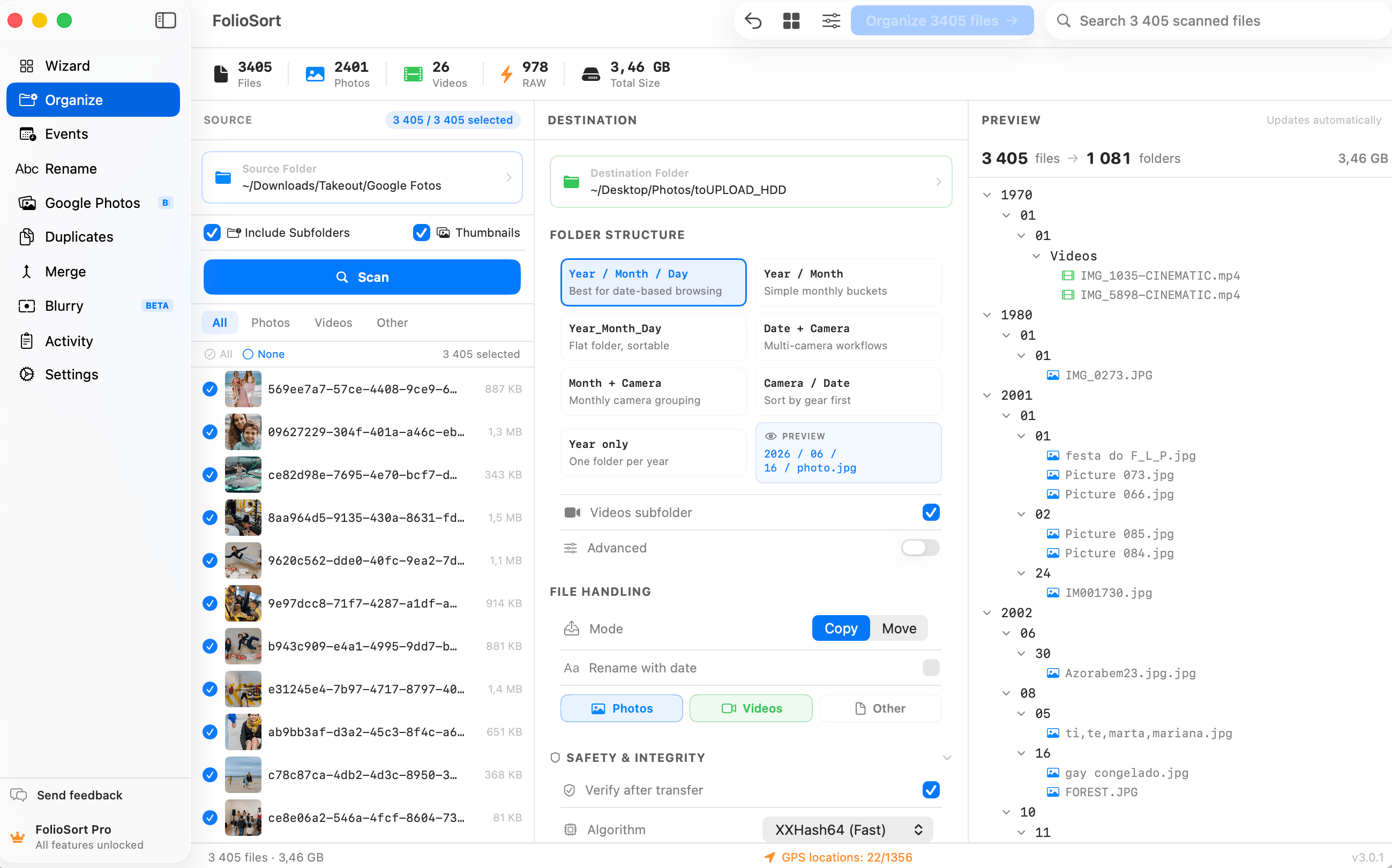
FolioSort ships with two NAS presets that lay your photos out exactly the way Synology Photos and Immich expect — with NAS-safe folder names and every single copy hash-verified. You organize on your Mac or PC; your NAS just indexes the result.
Two built-in presets
Sorts by real capture date into year/month folders — 2024/07/ — the layout Synology Photos
indexes natively. Point Synology Photos at the folder and your timeline builds itself.
Sorts into per-day folders inside each year — 2024/2024-07-06/ — ready to mount as an Immich
external library. Immich scans it in place; nothing gets re-uploaded.
Copy a messy library onto a network share and the problems start quietly: Synology Photos or Immich index a
folder soup with no date structure, accented folder names (São Paulo, Café) trip
over SMB and produce mysteriously skipped or invisible files, and a network hiccup mid-copy can corrupt a
file without anyone noticing — until the day you need it.
So the "put everything on the NAS" project stalls, half-done, with two copies of everything and no way to tell which one is complete.
FolioSort reads each photo's real capture date from its EXIF data and builds the exact folder structure your NAS software expects — year/month for Synology Photos, daily folders for Immich.
When the destination is a network share, folder names are automatically made NAS-safe: transliterated to plain ASCII (São Paulo → Sao Paulo) with the characters and endings SMB rejects stripped — so the NAS's own import never chokes on a name.
And every copy is hash-verified: an XXHash64 checksum of source and destination must match before the copy counts. Syncing and indexing stay the NAS's job — FolioSort uploads nothing, runs 100% locally, and never asks for an account.
How it works
Connect to your Synology or Immich host's share (SMB) from your Mac or PC, like any network folder.
Choose Synology Photos (NAS) or Immich library (NAS) as the destination structure.
See the full plan — every folder, every file, NAS-safe names included — before anything moves.
FolioSort copies with hash verification. Then let Synology Photos or Immich index the folders — that part is their job, and they're good at it.
Why it's safe
The NAS presets are the last step of a bigger journey. If your photos are still trapped in Google Photos or another cloud export, start there — FolioSort handles the whole trip.
Turn any cloud export — Google Takeout, WhatsApp, iCloud — into a clean, verified archive.
Explore the Exit Kit → GuideThe full walkthrough: export with Takeout, restore real dates, organize for Synology Photos.
Read the guide → GuideSelf-host your library: from Takeout zips to an Immich external library that just works.
Read the guide →FAQ
No. FolioSort runs entirely on your Mac or PC and writes organized folders to your mounted NAS share (SMB). Indexing is then done by the NAS itself — Synology Photos picks up the year/month folders natively, and Immich mounts the daily folders as an external library.
It sorts your photos and videos by their real capture date into year/month folders — for example 2024/07/ — which is the folder layout Synology Photos indexes natively. Point Synology Photos at the destination folder and your timeline is built from the folder structure FolioSort created.
It sorts your library into per-day folders inside each year — for example 2024/2024-07-06/ — a layout that is ready to be mounted as an Immich external library. Immich scans the folders and shows everything on its timeline without re-uploading anything.
When the destination is a network share, FolioSort automatically transliterates folder names to plain ASCII (São Paulo becomes Sao Paulo) and strips the characters and endings SMB rejects. That prevents the mysterious skipped or invisible files that otherwise appear when the NAS indexes folders with accented or special characters.
Every copy is hash-verified: FolioSort computes an XXHash64 checksum of the source file and the destination file and only counts the copy as done when they match. If a network hiccup corrupts a transfer, you'll know — nothing silently goes missing.
Free to try — both NAS presets are included and the free version organizes up to 100 files per run. Pro removes the limit. No subscription, no account, and your photos never leave your local network.
Download FolioSort, pick the Synology or Immich preset, and turn years of photo chaos into a NAS-ready archive — hash-verified, on your own network.