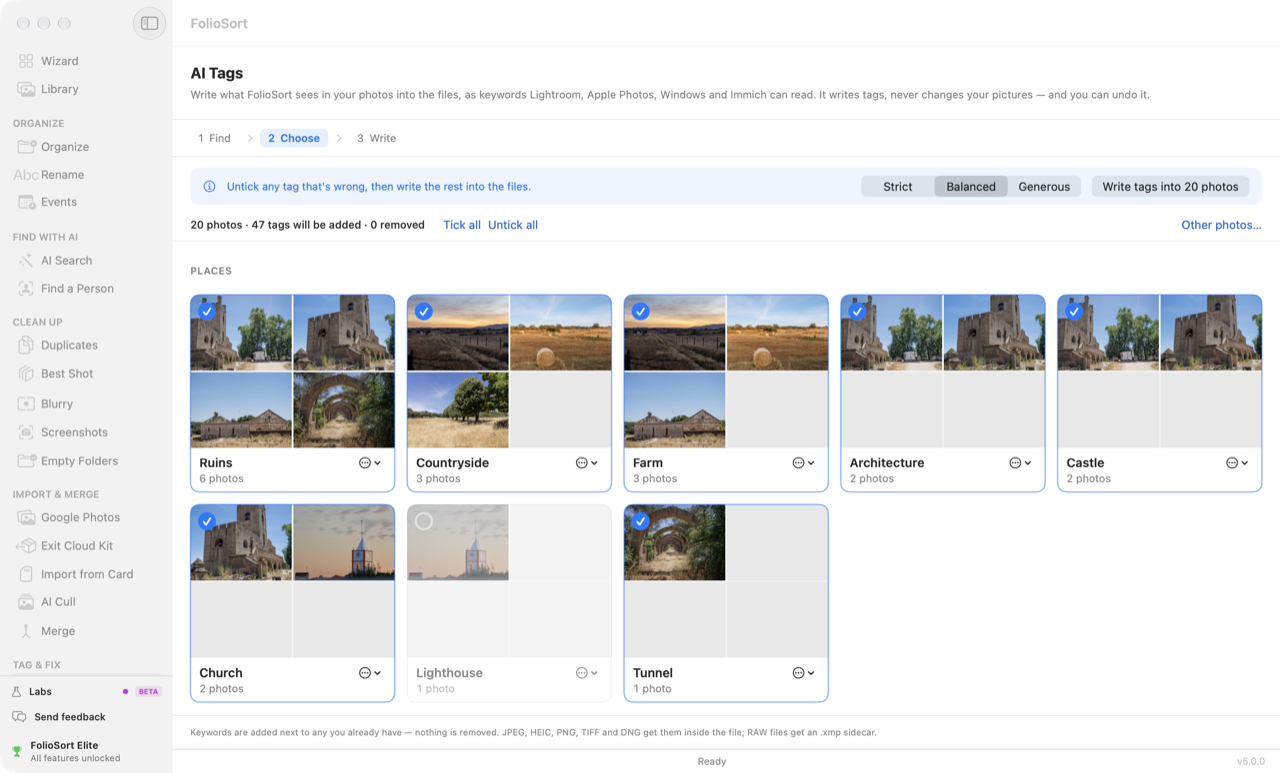
AI Tags · Tag & Fix
FolioSort's AI Tags looks at your photos with the same on-device AI that powers AI Search and proposes keywords — Beach, Owl, Birthday party, Castle — each shown as a card of the photos it would go on. Untick what is wrong, add words of your own, and FolioSort writes the rest into the files as standard XMP and IPTC keywords that Lightroom and Windows Explorer read. Nothing is uploaded, and every write can be undone.
Keywording is the job every archiving guide tells you to do and almost nobody does. Typing “beach” into every beach photo, one trip at a time, is a winter's work — so the folders stay named by date, and finding the castle from that holiday means scrolling until you see it.
Labels that an app works out for you and keeps in its own database don't solve it either. They live inside that app. Open the folder in Lightroom, move it to another computer, or change apps in a few years, and the labels stay behind.
FolioSort reads your photos once, on your own computer — the same reading that makes them searchable in AI Search — and proposes keywords from a fixed list of 303 tags in 12 categories: People, Animals, Nature, Sky & light, Places, Food & drink, Events, Activities & sport, Vehicles, Home & objects, Documents & text, and Style.
Every tag arrives as a card with its photos on it, so a wrong one shows at a glance. In the screenshot above, the single photo under “Lighthouse” is the church tower already tagged Church — so that card was unticked, and only the rest will be written.
What you keep goes into the files themselves, as the plain keywords photo apps have read for years. Move the folder, open it in Lightroom, switch apps: the keywords travel with the photos.
How it works
Pick All photos, one folder, or New since last review, and press Find tags. Photos FolioSort hasn't read yet get Read my photos first — on your computer. Nothing is written in this step.
Tags arrive as cards of photos, grouped by category. Click a card to leave it out. Switch Strict, Balanced or Generous and the list changes instantly — Strict proposes fewer, surer tags.
The keywords are added next to any you already have. JPEG, HEIC, PNG, TIFF and DNG get them inside the file; RAW files get an .xmp sidecar and are never touched.
See them in the Library, or in Lightroom with Metadata › Read Metadata from Files. Undo removes exactly what FolioSort added — now, or later from Activity.
What it can propose
Your own tags
Type a word the list doesn't have — “Vegan food”, “Azulejo tiles” — and FolioSort shows the twelve photos
that match it best and about how many photos it would get, before anything is saved. If the word alone is
ambiguous, Describe it in a sentence. Your tags sit under AI › My tags in Lightroom's
keyword tree, and they never start unticked: you asked for them by name.
Names of people belong in People, not here. AI Tags recognises things and scenes, not who someone is.
Rare tags start unticked. On a run of 50 photos or more, a tag that lands on only one or two photos starts unticked and says check it — tick it if it's right. Tags that cover many photos start ticked.
Never again. A tag that is never right for your photos can be switched off from its card's menu with Never propose, and it stops coming back.
New photos, without starting over. With Elite, Tag & Fix keeps count of what arrived since you last looked — a line such as “212 new photos since 12 Sep” — and Review opens AI Tags on just those photos, then Places, then Dates.
What it won't do. AI Tags writes keywords only — no captions or descriptions. Its vocabulary has no labels that infer ethnicity, religion, health, sexuality or nudity.
Inside the file
XMP dc:subject — the plain keyword, “Beach”. This is what Lightroom's keyword
list and Windows Explorer's Tags show.
XMP-lr:HierarchicalSubject — the same keyword in Lightroom's tree:
AI|Nature|Beach. Everything FolioSort's AI wrote sits under one AI root, so you can
find it — or remove it — in one step.
IPTC Keywords — for JPEG and TIFF, the older standard some software still
reads.
JPEG, HEIC, PNG, TIFF and DNG carry them inside the file. Other RAW formats get an .xmp sidecar
beside them, and the RAW itself is never written. Videos are not tagged.
The count above the cards says it before you write: “N tags will be added · 0 removed”. FolioSort reads the keywords already in each file first and only adds what is missing; “beach” and “Beach” count as the same keyword, so nothing is doubled. If it can't read what a file already carries, it writes nothing into that file rather than guess, and the finished screen says how many it could not tag.
Undo removes exactly what FolioSort added. Keywords you or Lightroom put there are left alone.
Seeing them elsewhere. In Lightroom Classic, select the photos and choose
Metadata › Read Metadata from Files. Windows Explorer shows them under Details › Tags. Apple Photos
reads keywords written inside a JPEG when it imports the photo, but it ignores the .xmp sidecar
of a RAW.
Why it's safe
.xmp sidecar beside them.Finding and reviewing tags costs nothing. Free and Pro write tags into 20 photos in total — enough to open them in Lightroom or Explorer and judge the result — and Elite writes them on the whole library. Below Elite, FolioSort reads up to 500 photos for its AI, the same taster as AI Search. Elite is a one-time purchase, with no subscription and no account — see pricing. FolioSort 5 is a free update for everyone who bought Pro or Elite.
Keywords are one field. These fill in the others — and the same AI reading searches your photos without any keywords at all.
Titles, captions, author, copyright and keywords for a whole selection — seen with their counts, reviewed, written in one go.
Edit metadata → Same AIType what you remember — “dog on the beach” — and find it, keywords or not.
AI Photo Search → Tag & FixCity, region and country written into your photos, after you review them on a map.
Places →FAQ
No. FolioSort reads your photos on your own Mac or PC, with the same on-device AI that powers AI Search, and proposes tags from that reading. There is no account and nothing is uploaded, so it also works with no internet connection.
303 tags in 12 categories: People, Animals, Nature, Sky and light, Places, Food and drink, Events, Activities and sport, Vehicles, Home and objects, Documents and text, and Style. At most 8 go on one photo. You can add up to 100 tags of your own, and tell FolioSort never to propose a tag again. The list has no labels that infer ethnicity, religion, health, sexuality or nudity, and AI Tags does not name people.
Into the files, in three standard places: XMP dc:subject (the plain keyword, such as Beach), Lightroom's hierarchical keywords (AI|Nature|Beach), and IPTC Keywords for JPEG and TIFF. JPEG, HEIC, PNG, TIFF and DNG get them inside the file; other RAW files get an .xmp sidecar beside them and the RAW itself is never touched. Videos are not tagged.
No. Keywords are added next to the ones already there and nothing is removed; a keyword the photo already has, in any capitalisation, is not added twice. Undo removes exactly the keywords FolioSort added and leaves yours alone, from the finished screen or later from Activity.
In Lightroom Classic, select the photos and use Metadata › Read Metadata from Files. Windows Explorer shows them as Tags in the file's Details. Apple Photos reads keywords written inside a JPEG when it imports the photo, but it ignores the .xmp sidecar of a RAW file.
Finding and reviewing tags is free. Free and Pro can write tags into 20 photos in total, enough to check the result in your own photo app; Elite writes them on the whole library. Below Elite, FolioSort reads up to 500 photos for its AI, the same taster as AI Search. Prices are on the pricing page.
Download FolioSort, open Tag & Fix › AI Tags, and see what it proposes for your own photos — on your own computer, before a single file is changed.