Protect · Archive Health
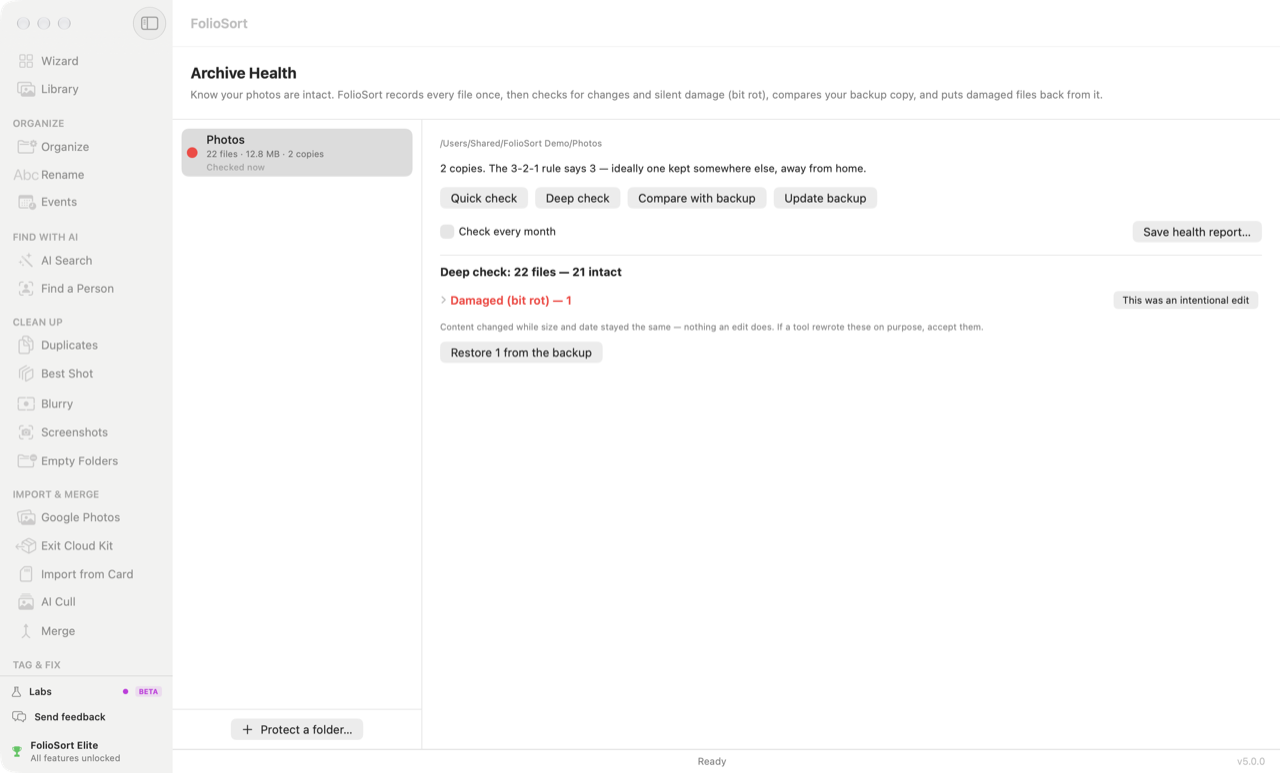
FolioSort's Archive Health records a fingerprint of every file in your photo folder, then checks the folder against it. A Deep check reads every byte and flags a photo whose content changed while its size and date did not — the signature of bit rot. Then it puts that photo back from your verified Backup Copy. All on your computer.
Drives age. A file that sat untouched for years can come back with some of its bytes wrong: a grey band across a JPEG, a RAW that will not open. Its name, its size and its date are all unchanged, so nothing in the folder tells you.
The worst part is the timing. If you only find out years later, your backup may have been rotated, or overwritten with the damaged file — and the good copy is gone.
Protect a folder… and FolioSort records how every file looks today — a fingerprint of its content, its size and its date. From then on, a check compares the folder with that record and tells you exactly which files changed, which went missing, which are new, and which were damaged without anyone touching them.
If you keep a Backup Copy, Archive Health also reads the backup against the same fingerprints, and puts a damaged photo back from it — only when the backup still holds the original bytes.
How it works
Protect a folder… — pick the folder that holds your organized photos. FolioSort records every file once, in its own app data, never inside your folder.
Quick check looks at sizes and dates only. Deep check reads every byte — that is what finds silent damage. Each folder gets a green, amber or red mark.
Compare with backup reads every file on your Backup Copy against the same fingerprints. A copy that differs or is missing can be re-copied and verified in one click.
Restore N from the backup sends the damaged file to the Trash and copies the good one back, checked against the original. Undo the restore reverses it.
What a check can tell you
| Intact | Matches what was recorded. Nothing to do. |
|---|---|
| Changed | Edited since it was recorded — the size or the date changed. Accept these edits records the new version. |
| Damaged (bit rot) | The content changed while the size and the date stayed the same — nothing an edit does. Found by a Deep check. Restore N from the backup, or This was an intentional edit if a tool of yours rewrote it. |
| Missing | No longer in the folder. Restore it from the backup, or I deleted these on purpose — your backup keeps its copies either way. |
| New | Added since the folder was recorded. Protect these too adds them. |
| Could not be read | The drive refused to read the file. Try again; if it persists, the drive may be failing. |
What a check promises
Elite
A Deep check of a large archive is something you mean to do and never do. With Elite, FolioSort does it for you once a month — and writes down what it found.
Check every month. Tick it on a protected folder and FolioSort runs a Deep check when it is open and the drive is connected. You are alerted only if something is damaged or missing — with a notification that sends you to Archive Health to restore it from your backup. There is no background service; if the drive is not connected, the check waits for it.
Save health report…. One HTML page you can open in any browser and keep with the archive: the folder, how many files and copies it has, the date and kind of the last check, a count per verdict, when each backup copy was last verified, and the list of files that need attention.
Why it's safe
The free version protects the first 100 files of each folder — record them, run a Quick or Deep check, and see what it reports. Pro protects every file, with Compare and Restore across the whole archive. Elite adds Check every month and Save health report…. One-time licences, no subscription, no account — and FolioSort 5 is a free update for everyone who bought Pro or Elite. See the plans.
Archive Health tells you something went wrong. These are what make it fixable.
The verified copy on another drive that a damaged photo is restored from.
Make a verified copy → BrowseEvery photo on every drive you own, including the ones that are not connected.
See the Library → TrustHow FolioSort checksums, verifies and undoes every file it moves.
How FolioSort keeps files safe →FAQ
An edit changes a file's size or its modified date. Bit rot changes the content and leaves both alone. A Deep check reads every byte and compares the file's fingerprint with the one FolioSort recorded; if the content changed while the size and date stayed the same, the file is listed as "Damaged (bit rot)". If a tool of yours rewrote it on purpose, "This was an intentional edit" accepts it.
A Quick check looks at sizes and dates only, so it is fast and finds files that were changed, removed or added. A Deep check reads every byte — that is what finds silent damage, because a file damaged by bit rot keeps its size and date and passes a Quick check.
It puts back a good copy rather than patching the bad one. If you made a backup with Backup Copy, the "Restore N from the backup" button first reads the backup copy and checks it still matches the original fingerprint. The damaged file goes to the Trash (the Recycle Bin on Windows), the good copy is copied back and verified, and "Undo the restore" reverses it. If the backup copy differs from the original too, FolioSort refuses and tells you to check any other backup you have.
Checking only reads. The fingerprints are kept in FolioSort's own app data, never inside your folder. The only step that writes to your folder is a restore you start yourself, and it can be undone. Accepting an edit, a new file or a deletion only updates FolioSort's record.
With Elite, "Check every month" runs a Deep check when FolioSort is open and the drive is connected. You are alerted only if something is damaged or missing. There is no background service: if the drive is not connected, the check waits.
Free protects the first 100 files of each folder, so you can see a check work on your own photos. Pro protects all of them — checks, Compare and Restore across the whole archive. Elite adds the monthly check and the health report. All are one-time licences with no subscription.
Download FolioSort, protect the folder that holds your photos, and run a Deep check. If something went bad, put it back from your verified backup.