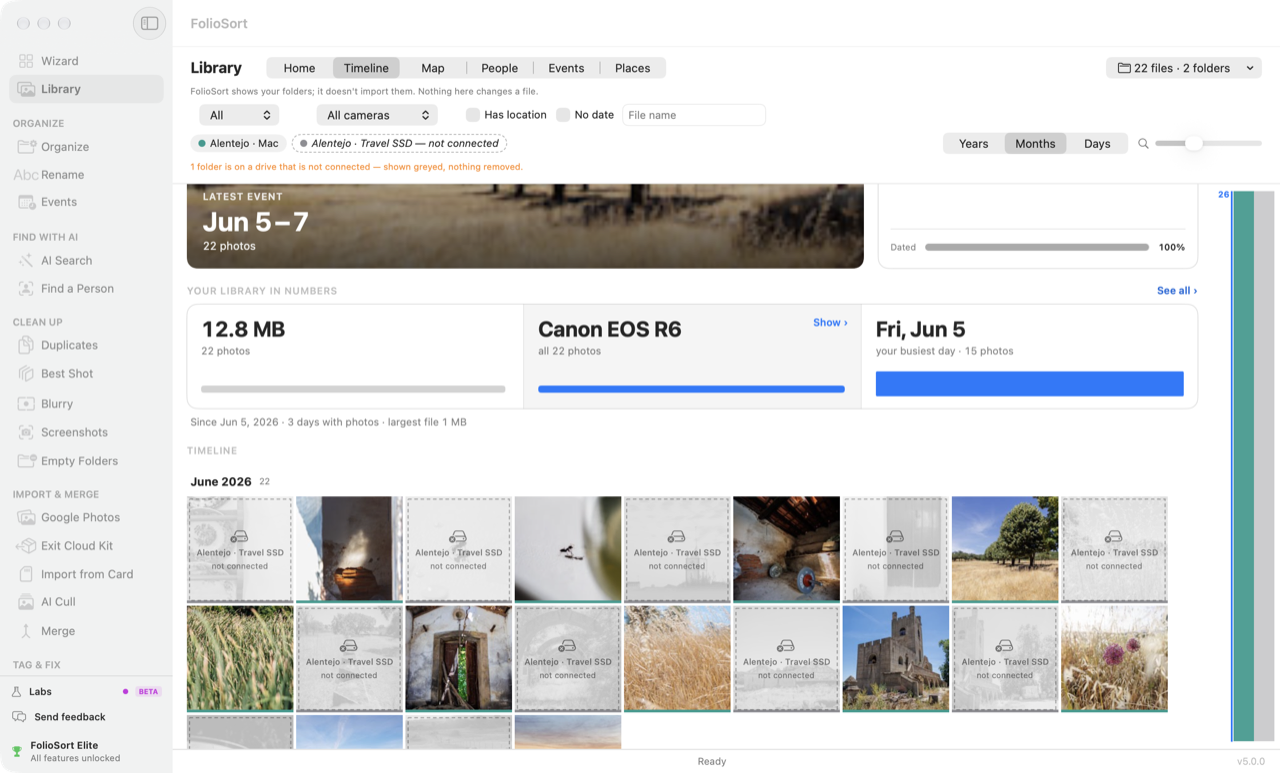
One month, two folders. “Alentejo · Travel SSD” is unplugged — its photos stay in the timeline, greyed and labelled, and the header says what happened: shown greyed, nothing removed.
Library · new in FolioSort 5
FolioSort shows every photo on every folder and drive you add in one timeline, by month, with each RAW+JPEG pair as one photo — reading your files where they are, without importing or copying a single one. Unplug a drive and its photos stay on screen as greyed tiles that name the drive to go and get; plug it back in and they return in place, with no rebuild. Browsing is free on every tier, on Mac and Windows.
One month, two folders. “Alentejo · Travel SSD” is unplugged — its photos stay in the timeline, greyed and labelled, and the header says what happened: shown greyed, nothing removed.
The old laptop's folders went onto a USB disk. The camera cards went onto a travel SSD. Last year is on the Mac or the PC, the year before is on a drive in a drawer. Each one is organised in its own way, and the only way to find a photo is to remember which drive it is on, plug it in and dig.
A photo app that wants everything imported into its own catalog doesn't solve that. It treats the drive in the drawer as missing, and asks you to move your library into its way of doing things.
Add the folders and drives you keep photos on, and FolioSort reads them into one timeline. It is an index, not an import: your files stay in the folders you made, nothing is copied, and the line under the Library's title says so — “FolioSort shows your folders; it doesn't import them. Nothing here changes a file.”
Every folder gets its own colour, so you can see at a glance which drive a photo lives on. When a drive is unplugged, its photos stay in the timeline as ghost tiles drawn from the thumbnails FolioSort already made — you can still find the photo and know which drive to fetch. Plug it in and the tiles fill in again, in place.
From there it is a real photo library manager: a Home that shows what is in your photos and what needs fixing, a timeline you can zoom from years to days, a map, events, places, a proper viewer, and your library in numbers.
How it works
The first time, FolioSort adds your Pictures and Desktop folders so there is something to see at once. Add a folder… brings in any other folder, external drive or network share.
Each file's date, camera and location are read where it sits. A RAW with a JPEG of the same name shows as one photo with a RAW badge; a Live Photo's video sits behind its still.
Home, Timeline, Map, People, Events and Places. Zoom Years · Months · Days, filter by kind, camera, location or no date, and hide or show a drive with one click.
Its tiles turn grey and say not connected; nothing is removed. Plug it back in and they return in place — no rebuild. Later reads only re-read files that changed.
The Library in four facts
Six ways in
On this day from earlier years (or this week, or a year ago), your recent events named by where and when — “Faro · 28 Jul – 3 Aug 2019” — and Your library at a glance: photos without a date, places to name, photos without a place, duplicate copies, and what is on a drive that isn't connected. Each row opens the photos it counts, or the screen that fixes them.
Newest month first, undated photos at the end. Zoom Years · Months · Days with the buttons, the keyboard, a pinch (Mac) or Ctrl+wheel (Windows). A column on the right shows how many photos each month holds, coloured by drive — click or drag it to jump. A small map in the corner follows the month on screen.
Every photo with GPS on one map, clustered as you zoom out, with how many have a location and how many don't. Click a pin and the timeline shows just those photos.
The people you've named in Find a Person, each opening every photo they are in, with the groups you haven't named yet below. Below Elite, People looks through your 100 most recent photos and tells you how many people it found — faces blurred.
Your photos grouped into moments: three or more photos with no six-hour gap between them. One click shows an event in the timeline.
Towns and countries with how many photos each. Photos that have GPS but no place name yet are counted, with Find their places… to look them up.
Search from the Home
The top of the Home is a search box — “beach at sunset”, “birthday cake”, “dog in the snow”. The first search reads your photos on your computer with FolioSort's on-device AI, then answers with the confident matches first and the rest behind a link. Nothing is uploaded.
Free and Pro search the first 500 photos; AI Search over the whole library is part of Elite. The timeline's own File name filter works on every tier.
Your library in numbers
How much space your library takes and how much of it is RAW, the camera you use most, your busiest day, and the hour and weekday you shoot most. Each number opens the photos it counts. See all adds year by year, places and kinds of file — and a 1080 × 1350 card to share, made and saved on your computer. See what the card looks like.
Double-click a photo, or press Space, to open it beside its details: date, folder, camera, exposure, pixel size and location. Step with the arrow keys, zoom from Fit to 200 %, press F for full screen, and play videos where they are.
Rotate writes the orientation and nothing else: the orientation tag inside a JPEG, HEIC,
PNG, TIFF, DNG or WebP; an .xmp sidecar beside a camera RAW, so the camera's own file is never
written; the track rotation of a video, with no re-encode. A line at the bottom says “Rotated 3 photos” with
Undo beside it.
Select a run of photos with ⇧-click, or Select all, and send them on: Edit metadata…, Fix dates…, Add places…, Write AI tags…, Find duplicates… or Make a verified copy…. The Library shows; those tools change files, after you review what they will do.
An index, not a catalog
| When… | FolioSort Library | Lightroom Classic |
|---|---|---|
| You add photos | Read in your folders, where they are | Imported into a catalog (.lrcat) |
| A drive is unplugged | Photos stay, greyed | Shown as missing until re-linked |
| You develop RAW files | Not an editor | Industry standard |
| You pay | Browsing free; Pro and Elite once | Subscription only |
Our pick for a photo library spread over external drives: FolioSort — it reads the folders where they are, keeps an unplugged drive's photos in view, and costs nothing to browse, on Mac and Windows. Keep Lightroom Classic as the right second app for developing RAW: it reads the star ratings and keywords FolioSort writes into your files. Choose Apple Photos if you are happy inside its single library package (Mac only); digiKam if you need Linux or a free, open-source catalog — it keeps a SQLite or MariaDB database over albums mapped to your folders.
Written by FolioSort. Rival facts checked on the vendors' own sites in September 2026.
Why it's safe
Home, Timeline, Map, Events, Places, the viewer and Library in numbers have no limit on any tier — add every drive you own and look at all of it. Two parts use FolioSort's on-device AI and belong to Elite: People, and searching the whole library by what is in the photos. The tools you send photos to from the Library keep their own limits — on the free version, most work on 100 files at a time. Compare Free, Pro and Elite.
Already bought Pro or Elite? FolioSort 5 is a free update.
The Library shows you what your folders hold and what is wrong with them. These are the screens its rows open.
“Without a date” on the Home opens here: fill in missing dates, shift a camera's wrong clock, or set one by hand — undoable.
Fix photo dates → Tag & Fix“Places to name” opens here: write the town, region and country into each photo after checking them on a map.
Add place names → ProtectPhotos spread over drives deserve a second copy. Mirror a folder to another drive, every file checked against the original.
Verified backups →FAQ
No. The Library is an index of the folders you add: it reads each file where it is and keeps a small record of it (where it is, when it was taken, which camera, where it was taken). Your photos stay in the folders you made, on the drives they are on, and nothing is copied into a catalog. The line under the Library's title says it in the app: FolioSort shows your folders; it doesn't import them.
They stay in the timeline as greyed ghost tiles, drawn from the thumbnails FolioSort already made, each labelled with the drive it lives on and not connected. The Home says how many photos are on a drive that is not connected, and nothing is removed from the Library. Plug the drive back in and the same photos come back in place, with no rebuild.
Browsing is free and unlimited on every tier: Home, Timeline, Map, Events, Places, the viewer and Library in numbers. Two parts use FolioSort's on-device AI and belong to Elite: People, and searching the whole library by what is in the photos (below Elite the search reads your first 500 photos). The tools you send photos to from the Library keep their own limits. FolioSort 5 is a free update for everyone who bought Pro or Elite.
No. Looking, zooming, filtering and opening the viewer never write to a file. The one thing in the Library that writes is Rotate, and only when you press it: it changes the orientation tag and nothing else — inside the photo for JPEG, HEIC, PNG, TIFF, DNG and WebP, in an .xmp sidecar for camera RAW files, and as the track rotation for a video, with no re-encode. One click on Undo puts it back.
Nothing of yours is lost. There is no import catalog to maintain — only a disposable index of your folders, kept in FolioSort's own app data. Add the folders again and FolioSort reads them again. Later reads only look at files whose size or modification date changed.
No. The Library reads ordinary folders. On the Mac it skips the Photos library package inside your Pictures folder, so photos kept only inside Apple Photos do not appear. Photos you have exported, or that live in Finder folders and on external drives, do.
No photo, face, file name or path. The Library reads your files on your computer. When a map is on screen it loads the map tiles for that area, from Apple Maps on the Mac and OpenStreetMap on Windows. The event names on the Home use only place names FolioSort has already looked up; the Library itself never sends coordinates to a geocoder. Search by what is in a photo runs on your computer.
Download FolioSort, add the folders and drives your photos live on, and browse all of them — the drive in the drawer included. Nothing imported, nothing moved, free to browse.