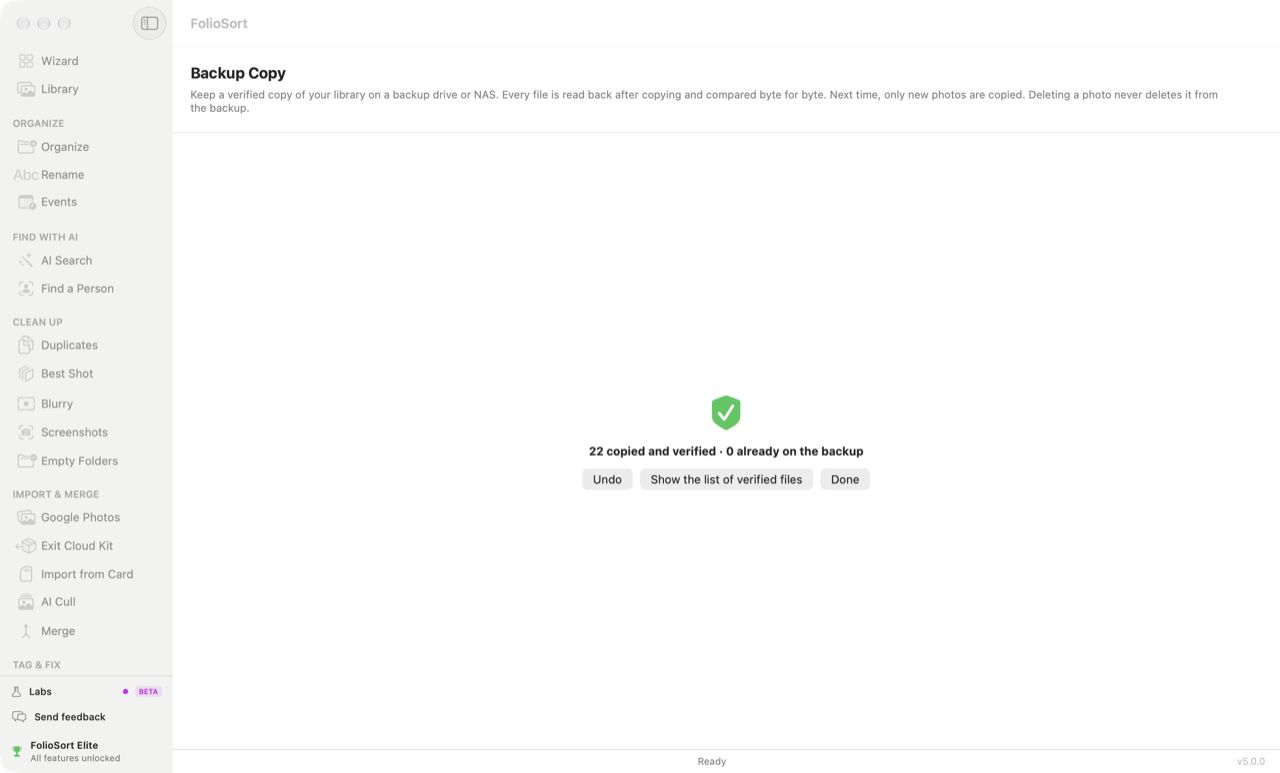
Protect · Backup Copy
FolioSort's Backup Copy mirrors your photo library to a backup drive with the same folders, then reads every file back from the drive and checks it against the original. Next time it copies only what is new, and deleting a photo from your library never deletes it from the backup. All on your computer.
A drag-and-drop copy tells you it finished. It does not read the file back from the drive to see whether what landed there is what you sent. A tired USB cable, a drive that is starting to fail or a copy cut short can leave a file that looks fine in the folder and will not open in five years.
And the copy goes stale. You copy everything once, add a summer's worth of photos, and the backup quietly stops being a backup.
Choose your library and a folder on the backup drive. FolioSort keeps the same folders on the backup, copies each file under a temporary name, reads it back from the drive and compares its XXHash64 checksum with the original's. Only a copy that matches takes its real name.
Run it again next week and it copies only what is new or changed. A copy that went wrong is caught on the day it happens — not on the day you go looking for the photo.
How it works
Pick the folder that holds your photos and a folder on the backup drive. After an Organize run, the library is already filled in with where your photos just went.
Start backup copy: each file is copied, read back from the drive and checksum-compared. A mismatch is copied once more; if it still differs, it is reported — never kept silently.
Next time, a file already on the backup with the same size and date is skipped. A changed one is replaced, and the old copy goes to the Trash. Nothing is ever deleted because you deleted it in your library.
A list of every verified file is written on the backup drive (Show the list of verified files). Archive Health can compare the backup with your library again at any time.
What a run promises
It asks at the right moments
So FolioSort brings it up when it matters, instead of waiting for you to remember.
After an Organize run. When photos have just been filed into one place, the results say so: "These photos now exist in one place. Keep a verified copy on a backup drive?" — one click on Make a backup copy… opens Backup Copy with that folder already chosen.
When the backup drive is plugged in. On the Mac, connecting a backup drive FolioSort already knows brings up "Your backup drive is connected: bring it up to date (N new photos)?" with Update backup and Not now — plus a notification, if you allow them.
At the end of a Workflow. With Elite, Workflows have an Update Backup Copy step: copy new photos to your backup drive and verify every file. If the drive is not connected, the step is skipped and says so.
Why it's safe
The free version copies and verifies the first 100 files — enough to watch it work on your real library and open the list of verified files on the drive. Pro backs up the whole library. Elite adds the Update Backup Copy step in Workflows, and the monthly Archive Health check. One-time licences, no subscription, no account — and FolioSort 5 is a free update for everyone who bought Pro or Elite. See the plans.
A verified copy is the first half. Knowing the original is still intact is the second.
Find a photo that silently went bad, and put it back from this backup.
Check your archive → BrowseEvery photo on every drive you own, even the backup drive in the drawer.
See the Library → AutomateOrganize, clean up and update the backup copy in one run you save once.
See Workflows →FAQ
Each file is copied to the backup drive under a temporary name, then read back from the drive and its XXHash64 checksum is compared with the original's. Only a copy that matches takes its real name. If it does not match, FolioSort copies it once more; if the second copy does not match either, the file is listed as not identical and the backup drive may be failing — it is never kept silently.
Nothing. Deleting a photo never deletes it from the backup. Backup Copy only adds and updates files there; files that are on the backup but no longer in your library are kept.
A file already on the backup with the same size and date is skipped. A changed one is copied again and verified, and the older copy on the backup goes to the Trash (the Recycle Bin on Windows) instead of being overwritten.
No. FolioSort refuses with "The backup folder can't be inside your library, or your library inside it." A backup inside the folder it protects would be copied into itself, and it would fail with the same drive.
After an Organize run, FolioSort offers to keep a verified copy of what it just filed. On the Mac, plugging in a backup drive FolioSort already knows brings up an offer to bring it up to date, with the number of new photos. With Elite, a Workflow can end with an Update Backup Copy step.
Free copies and verifies the first 100 files, so you can see it work on your own photos. Pro backs up the whole library. Both are one-time licences with no subscription, and FolioSort 5 is a free update for everyone who bought Pro or Elite.
Download FolioSort, point Backup Copy at your library and your backup drive, and get a copy where every file was read back and checked — then keep it current with one click.