Workflows · Automation · Elite
Chain the steps you repeat every month — organize into dated folders, remove duplicates, rename, clear screenshots and blurry shots — into one saved workflow. Run it in a single click — or let a watch folder run it automatically when new files land. Every destructive step can pause so you approve what goes, and every step is undoable. 100% on-device, no cloud, no account.
This pipeline · 5 of the 6 steps
Working set
~/Pictures/Archive — 412 files
Import the camera dump. Sort it into dated folders. Hunt the duplicates. Rename everything to a sane pattern. Sweep out the screenshots and the out-of-focus shots. Keep one frame out of every burst. Six passes over the same folders — and because it's six chores, it usually doesn't happen at all. The backlog wins.
General automation tools like Hazel or Automator can help, but you're left assembling photo logic out of rules and scripts — and they act immediately, with no review and no undo.
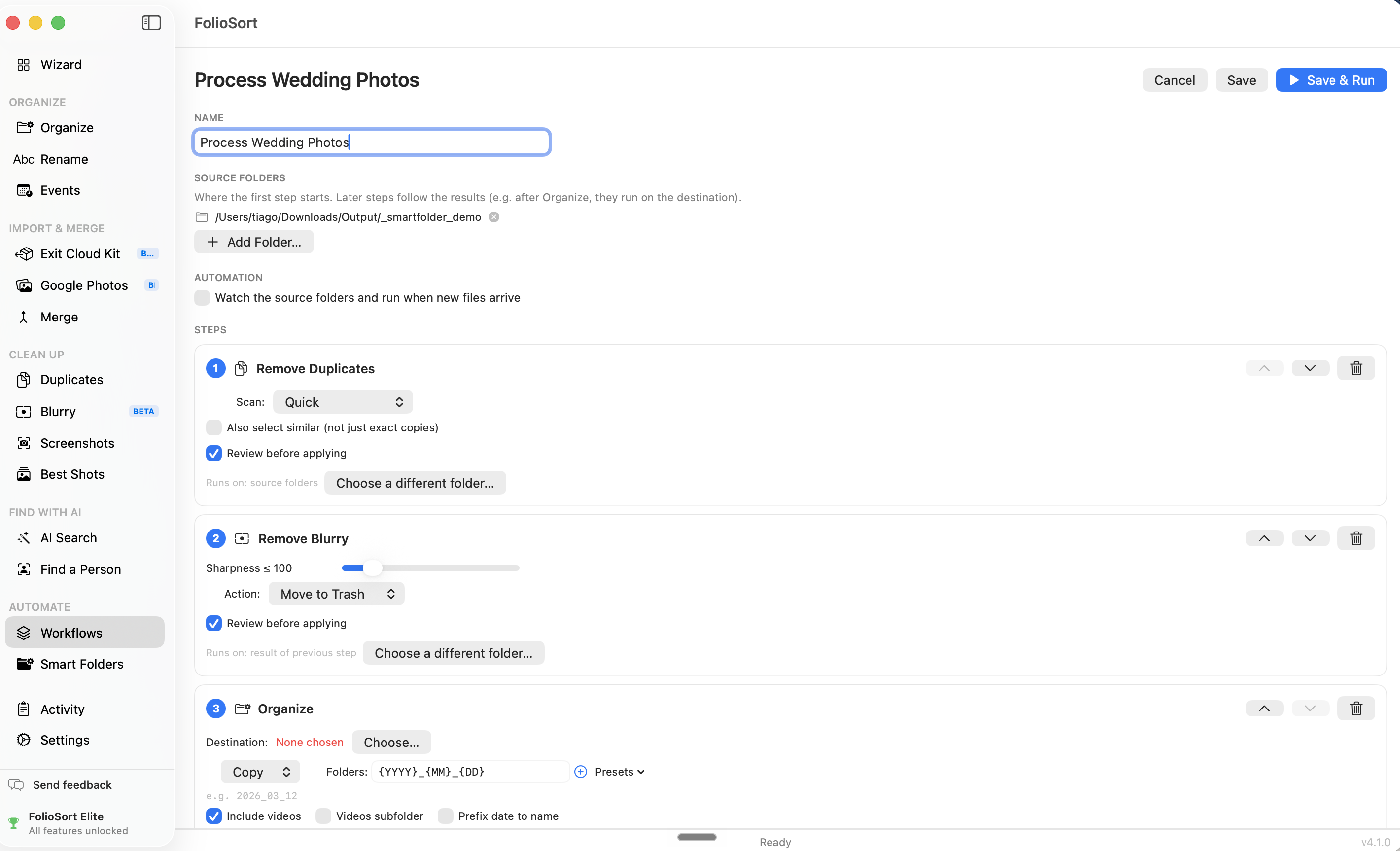
A FolioSort Workflow is a saved, repeatable cleanup pipeline: chain up to six photo-native steps in any order, and the output of each step flows into the next. Point it at your folders, press Run, and the entire cleanup happens as one operation.
It automates the work — not the judgement. Every destructive step pauses for your review before anything is applied, and every step writes its own undo batch. Next month, the same cleanup is literally one click.
The building blocks
{YYYY}_{MM}_{DD}, video separation and date fallbacks.
Full Organizer →How it works
Add the steps you want in order and configure each once — folder template, scan mode, thresholds, Trash or move.
Choose the source folders. The workflow carries one working set through every step.
Destructive steps pause and show exactly what goes and what's kept. Adjust, skip the step, or cancel.
Each step wrote its own undo batch — roll back step by step. Next time, the same cleanup is one click.
Watch folders · Triggers
Every workflow runs on demand: open it, press Run, review, done. But you can also flip on Watch this folder — and the workflow fires itself whenever new files land in its source folders. Drop an SD card dump into the folder, and 20 seconds after the copy finishes, the whole pipeline runs on its own. It even catches up at launch with files that arrived while the app was closed.
An automatic run has nobody watching it — so FolioSort only allows it when the workflow is safe to run unattended: review-pauses must be off (you opt in to that, per step), and it refuses configurations that would feed the watch its own output. Every automatic run is logged in Activity, and every step is still undoable afterwards. Building a workflow is free — running one, on demand or on a watch, is part of Elite; watch folders are currently macOS only.
Automation you can trust
The scary part of photo automation is a script deleting the wrong thing while you're not looking. Workflows are built the other way around: any step that removes files — duplicates, screenshots, blurry — pauses the run and shows you the full selection first. For duplicates you even see the keeper, not just what's going.
Every step records its own undo batch. A whole run can be unwound step by step, in reverse order — and removed files go to the Trash or a folder you choose, never straight to permanent deletion. It's the same checksum-verified, undoable engine behind every FolioSort tool, running entirely on your computer.
Why it's safe
Every month I'd dump the SD card and promise myself I'd sort it "later". Now it's one workflow: organize into year/month, kill the exact duplicates, rename, sweep the screenshots. It pauses to show me what it wants to delete, I glance through, done. The monthly chore is about two minutes now.
The Guided Wizard walks you through your first big cleanup. Workflows turn the cleanup you repeat into one click. Merge Sources folds every stray copy into the library those workflows keep clean.
A four-step guided setup for your first big cleanup — no configuration knowledge needed.
Explore the Wizard →Save the cleanup you repeat as a multi-step pipeline and run it in one click — reviewed and undoable.
This pageCombine folders, drives and exports into one de-duplicated library — the one your workflow maintains.
Explore Merge →FAQ
A Workflow is a saved, repeatable photo-cleanup pipeline. You chain up to six steps — Organize into dated folders by EXIF, Remove Duplicates, Rename with a date pattern, Clean Screenshots and Remove Blurry photos — over your chosen folders, and the output of each step feeds the next. Once saved, the whole cleanup runs again in one click.
Not unless you tell it to. Every destructive step (Duplicates, Screenshots, Blurry) pauses the run for a review by default: you see exactly which files are selected — and for duplicates, which copy is kept — and you can adjust the selection, skip the step, or cancel the run. Only byte-identical duplicate copies are pre-selected; visually similar ones are opt-in.
Yes. Each step writes its own undo batch, and you roll them back in reverse order — last step first. Removed files go to the Trash or a folder you choose, never permanently deleted by the workflow itself.
Hazel and Automator are general-purpose file automation: powerful, but you assemble photo logic yourself from rules and scripts, and they act immediately with no review step. FolioSort Workflows are photo-native — EXIF date organizing, duplicate detection, screenshot and blur detection are built-in steps — and every destructive step pauses for review and is undoable. FolioSort also runs on both macOS and Windows. See our full Hazel comparison.
Yes — enable "Watch this folder" on a workflow (Elite, macOS) and it runs by itself whenever new files land in its source folders and settle. At launch it also catches up with files that arrived while the app was closed. Unattended runs require review-pauses to be off and configurations that can't re-trigger themselves, and every run is logged in Activity — still undoable afterwards. Without the toggle, workflows only run when you press Run.
Yes. By default each step continues on the working set from the previous step, but any step can override its input folder — for example, organize your camera dump into your archive, then run duplicate cleanup over the whole archive.
You can build and configure workflows for free — add steps, folders and settings with no limit. Running a workflow, on demand or via a watch folder, is part of Elite, FolioSort's top tier — a one-time purchase (€39.99), no subscription. Free and Pro don't include running workflows. See pricing →
Build your pipeline — organize, de-duplicate, rename, sweep — and let one click keep your library clean from now on. Reviewed before anything is removed, undoable after, and entirely on your own computer.