Migration Guide Amazon S3 Long-Term Archive

Back Up Google Photos to AWS S3 — Without Breaking Your Timeline

Google Takeout exports strip real dates and buries GPS in JSON files. Uploading directly to AWS S3 causes thousands of photos to appear as "taken today". FolioSort completely restores your EXIF metadata locally on your Mac before your migration.

Google Photos ──── FolioSort ────→ 🌐 Amazon S3
Free to download — 100 files free No account, no sign-up Runs 100% on your Mac
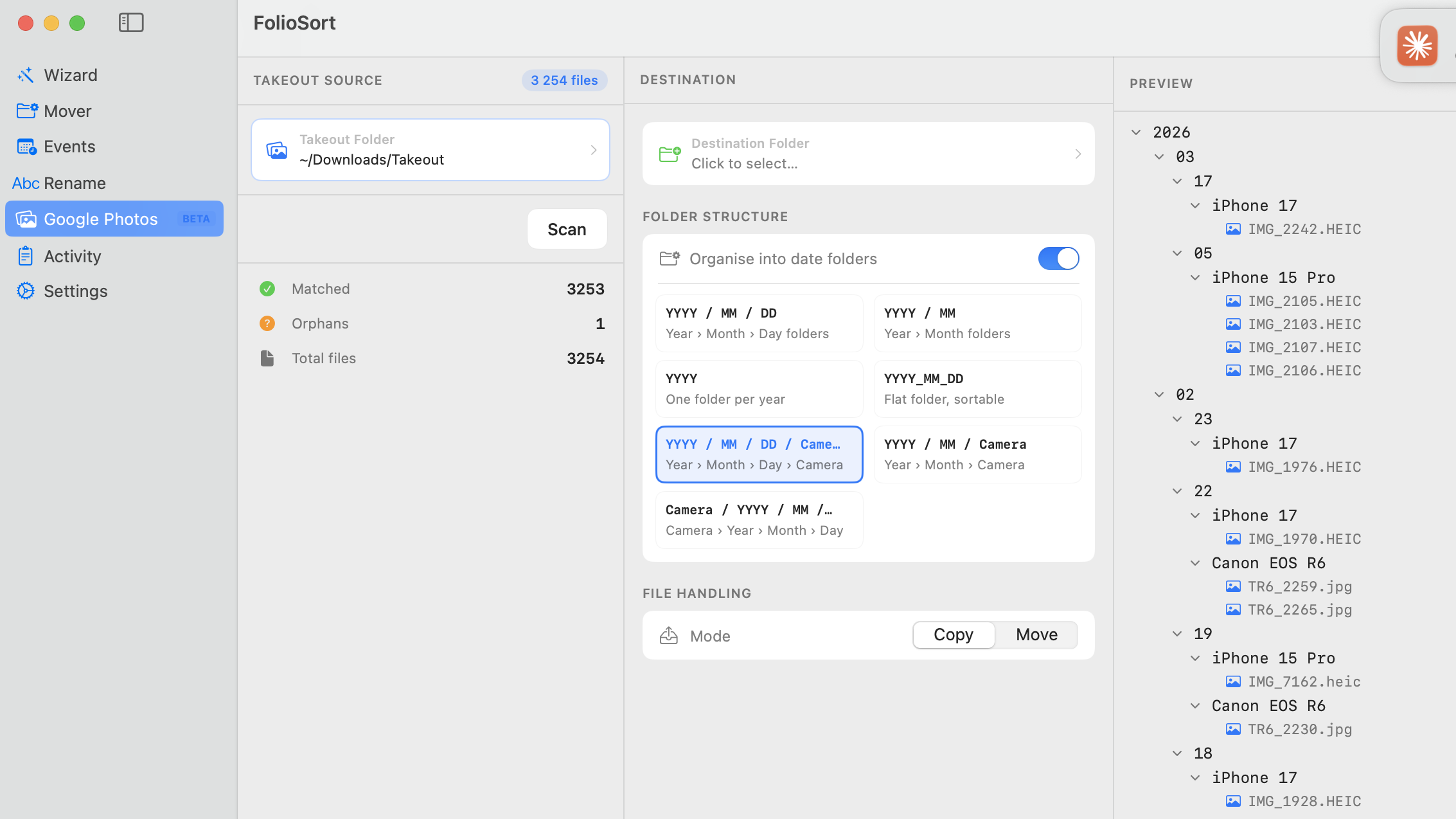
FolioSort on macOS importing a Google Takeout folder — restoring dates and GPS and organizing into clean Year/Month folders ready to upload to AWS S3

FolioSort fixes every date and location and organizes your library locally — then your chosen tool uploads the clean folders to S3.

Choosing the right S3 storage class for photos

S3 offers several storage tiers. For a personal photo archive, your main choices are two:

S3 STANDARD_IA
Standard Infrequent Access ⭐ Recommended
~$0.0125/GB/month. Low retrieval cost. Perfect for a photo archive you occasionally browse. Files available in milliseconds. The best price/access balance for personal libraries.
S3 GLACIER_IR
Glacier Instant Retrieval
~$0.004/GB/month. Even cheaper than STANDARD_IA but higher per-retrieval cost. Best if you rarely access individual files — e.g. a pure cold backup that you only restore in a disaster scenario.
S3 STANDARD
Standard
~$0.023/GB/month. Highest availability. Only worth it if you're actively serving photos from S3 (e.g. a website). Expensive for a personal archive.
S3 DEEP_ARCHIVE
Glacier Deep Archive
~$0.00099/GB/month. Cheapest, but 12-hour retrieval delay. Only for disaster recovery archives you truly never access. Too slow for browsing your library.

The migration workflow

1

Export & organize locally with FolioSort

Export from takeout.google.com and extract all zips into one folder. Open FolioSort, select Google Photos (Beta) in the sidebar, point it at your Takeout folder and click Scan to restore real dates and GPS from the JSON sidecars into EXIF. In the same panel, turn on Organise into date folders, pick a template like {YYYY}/{MM}/, choose Copy or Move to a local folder, and click Process.

2

Create an S3 Bucket

In the AWS Console, create a new S3 bucket. Choose a region close to you. Enable versioning if you want protection against accidental deletes. Keep "Block Public Access" on — this is a private archive.

3

Upload with AWS CLI

FolioSort has now organized your library locally. The upload itself is done by your chosen S3 tool: install the AWS CLI (brew install awscli), configure with aws configure, then sync the local folder to S3 with the command below. Prefer a GUI? Cyberduck or rclone work just as well.

# Install AWS CLI (if not already installed)
brew install awscli
 
# Configure with your AWS access keys
aws configure
 
# Sync your FolioSort-organized library to S3
# Using STANDARD_IA storage class (recommended for photo archives)
aws s3 sync ~/Pictures/Organized/ s3://your-bucket-name/photos/ \
--storage-class STANDARD_IA \
--exclude "*.DS_Store" \
--no-progress
 
# Verify the upload count
aws s3 ls s3://your-bucket-name/photos/ --recursive --summarize

Why FolioSort matters before S3 upload

Meaningful Folder Paths in S3

S3 stores files as flat objects — but the key prefix acts as a folder path. A FolioSort-organized structure like photos/2023/07/IMG_4567.jpg makes browsing, lifecycle rules, and future retrieval infinitely easier than dumped Takeout chaos.

Correct Timestamps in S3 Object Metadata

S3 stores a LastModified timestamp for each object. When FolioSort fixes your EXIF dates first, the file system dates are also corrected — so S3's object metadata reflects when photos were taken, not when you exported them.

Zero Duplicates = Lower Storage Cost

Takeout duplicates photos in album folders. If 10,000 photos become 28,000 objects in S3, you're paying for 18,000 objects you shouldn't have. FolioSort removes duplicates before upload — saving real money.

S3's Durability Deserves Good Data

S3 Standard gives 11 nines of durability. It's pointless archiving broken, misdated files for decades. FolioSort ensures what goes into S3 is correctly dated, GPS-restored, and deduplicated.

Other migration options

Frequently asked questions

Backing up Google Photos to AWS S3, answered.

How do I back up my Google Photos library to AWS S3?

Use Google Takeout to export your photos and extract the .zip files into one folder. Run FolioSort to restore the real dates and GPS from the JSON sidecars and organize everything into clean Year/Month folders locally on your Mac. Then upload that organized folder to an S3 bucket with the AWS CLI (aws s3 sync), Cyberduck or rclone — the full walkthrough is in the steps above.

Why do my Google Photos all show today's date after a Takeout export?

Takeout stores the real capture date in separate .json sidecar files, not in the photo's EXIF. When you extract the zip your computer stamps every file with the extraction date — so uploading Takeout straight to S3 archives thousands of misdated photos. FolioSort reads those sidecars and writes the correct DateTimeOriginal back into each file before you upload.

Is FolioSort free to organize my Google Photos before uploading to S3?

Yes. FolioSort is free to download and the free tier processes up to 100 files per operation, so you can test the entire workflow end to end. Pro (€14.99, one-time — no subscription) removes the limit for large libraries and adds duplicate detection.

Does FolioSort upload my photos to S3 directly?

No. FolioSort runs 100% locally on your Mac — it fixes metadata and organizes your library into folders, but it never uploads anything anywhere. The S3 upload is a separate step you run with your chosen tool, such as the AWS CLI, Cyberduck or rclone.

How much does S3 storage cost for a photo archive?

For a personal archive, S3 Standard-IA costs roughly $0.0125/GB/month and Glacier Instant Retrieval roughly $0.004/GB/month. A 200 GB library is therefore about $1–3/month depending on the storage class. Retrieval and request fees are extra but small for an archive you rarely access.

Will FolioSort modify or risk my original Takeout files?

No. FolioSort uses a copy-then-verify approach: it copies each file to the local destination, verifies it with a checksum, and only removes the source if you explicitly choose Move. Your raw Takeout files stay untouched until you've confirmed the organized library is correct.

Does FolioSort work on Windows too?

Yes — FolioSort runs on both macOS 14+ and Windows 10+, with the same Google Photos (Beta) import and folder organization. This guide is written for Mac, but every FolioSort step applies on a Windows PC as well, and the same S3 tools (AWS CLI, Cyberduck, rclone) are available there.
Archive your memories correctly — for decades.

Download FolioSort free and fix your first 100 files in minutes. Correct dates, real GPS, no duplicates — organized locally on your Mac, then uploaded to S3 with the tool you already trust.

Local processing — nothing uploaded by FolioSort 14-day guarantee