Migration Guide Google Photos macOS

Transfer Google Photos to Mac — and Keep Every Date & Location

Pull your library out of Google and the first thing you'll notice is that everything is dated "today" — Takeout dumps the real capture dates and GPS into separate .json files instead of the photos themselves. FolioSort puts that metadata back where it belongs and builds a clean, browsable library — entirely on your Mac, nothing uploaded.

Google Photos ──── FolioSort ────→ 💻 Your Mac
Free to download — 100 files free No account, no sign-up Runs 100% on your Mac — nothing uploaded
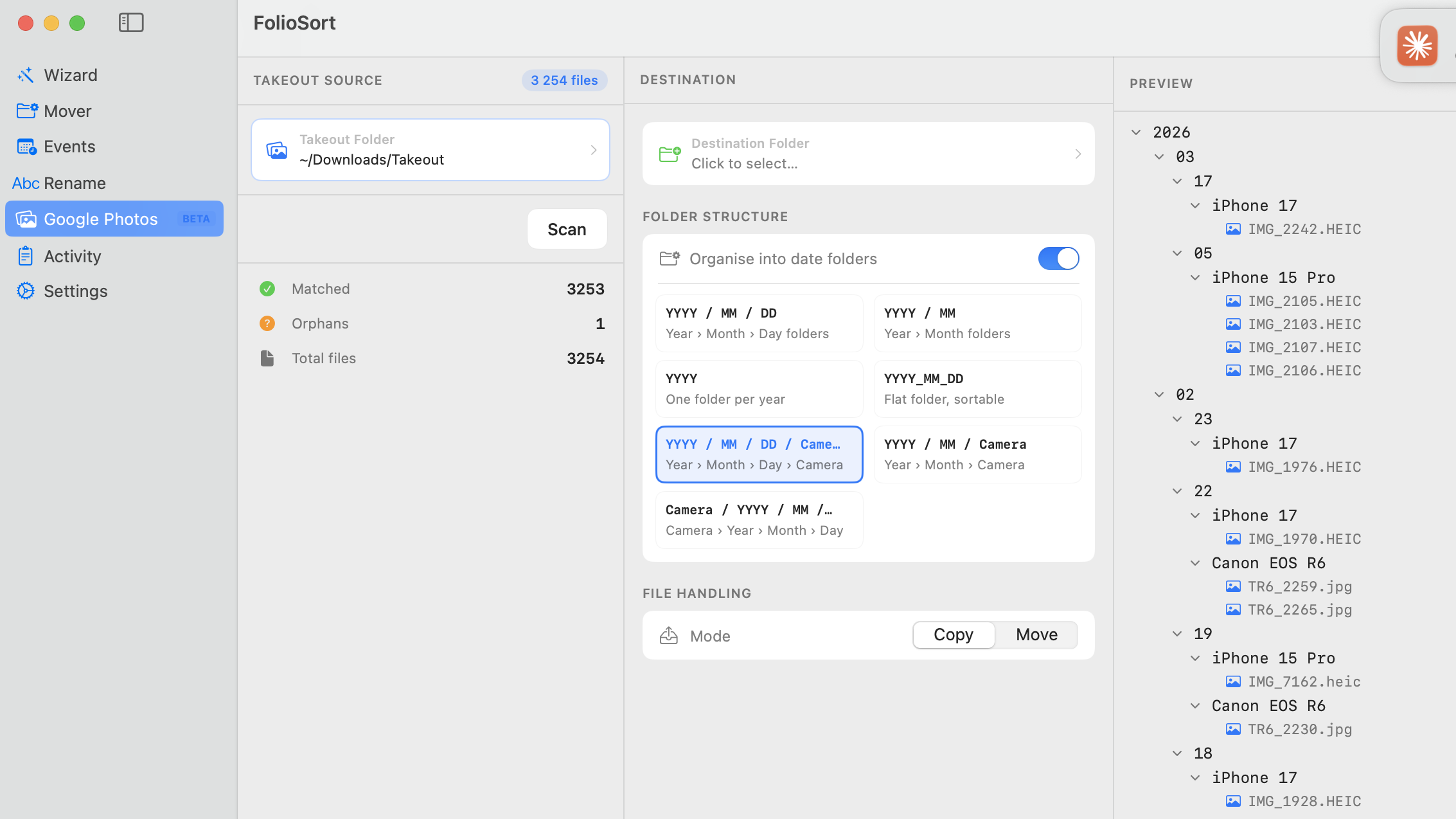
FolioSort on macOS transferring a Google Photos Takeout export — restoring capture dates and GPS from JSON sidecars and previewing the organized Year/Month folder library

FolioSort pairs each photo with its Takeout metadata and shows you the finished Mac library before a single file is written.

Why transferring Google Photos to a Mac is harder than it should be

Google Takeout will hand you your photos — but in a state no photo app can make sense of. Four things break on the way out.

Capture dates come out broken

Takeout doesn't write the real shot date into many files' EXIF. After extraction, macOS stamps everything with today's date — so a decade of memories collapses into one day in your timeline.

GPS is stripped into .json sidecars

Every location your photos had in Google Photos lands in a separate .json file next to the image — invisible to Apple Photos, Lightroom, or any map view, unless something writes it back into the file.

Duplicates across zip parts

Large exports arrive split into many zip parts, and photos that live in multiple albums get exported more than once. Without duplicate detection you end up storing — and sorting — the same shot several times.

A flat, unorganized dump

What you get is a maze of Takeout/Google Photos/... folders with cryptic names — not a library. There's no Year/Month structure, nothing you'd actually want to browse in Finder.

How to transfer Google Photos to a Mac, step by step

One Takeout export, one FolioSort pass — and your full library lives on your Mac with every date and location intact.

1

Export with Google Takeout

Open takeout.google.com, deselect every service except Google Photos, and request a .zip export (50 GB parts work best). Google emails you the download links — usually within hours, up to a few days for huge libraries.

2

Extract every zip into one folder

Make a folder like Takeout-Raw/ on your Mac or an external SSD and extract all the zip parts into it. With many parts, Terminal is quicker: unzip 'takeout-*.zip' -d Takeout-Raw/.

3

Scan with FolioSort

Open FolioSort, choose Google Photos (Beta) in the sidebar, set the source to your Takeout-Raw/ folder, and click Scan. FolioSort pairs every photo and video with its .json sidecar.

4

Dates & GPS restored

FolioSort writes the true capture date back into each file's EXIF DateTimeOriginal and restores the GPS coordinates Google kept in the sidecars. Duplicates spread across zip parts are detected and skipped.

5

Pick a folder template

Set your destination (e.g. ~/Pictures/Library/) and a template like {YYYY}/{MM} {Month}/. The live preview shows the exact Year/Month tree your library will land in — before anything moves.

6

Process & verify

Click Process. FolioSort copies every file into place and verifies each one against a checksum, then shows a summary of files transferred, duplicates skipped, and any errors. Your originals stay untouched unless you choose Move.

What you end up with

Not a Takeout dump — a real photo library on your Mac, with the metadata living inside the files where it belongs.

Every capture date, correct

EXIF DateTimeOriginal is rewritten into every photo and video. Open the library in Apple Photos, Lightroom, or Capture One and the timeline reads exactly as you lived it.

GPS back in your photos

Any photo that had a location in Google Photos gets its coordinates restored to EXIF — so Places in Apple Photos and Lightroom's Map view work as if the photos never left.

Clean Year/Month folders

2024/05 May/, 2024/06 June/ — a structure you can browse in Finder, back up anywhere, and import into any photo manager. No app or account required to open it.

Checksum-verified transfer

Every file written to the destination is verified against the source with a checksum. If anything were to corrupt in transit, you'd know immediately — no silent data loss.

FolioSort preview showing a transferred Google Photos library organized into Year and Month folders on a Mac, with dates and GPS restored

The finished result: your Google Photos library as a clean, Finder-browsable archive on your Mac.

Frequently asked questions

Transferring Google Photos to a Mac, answered.

How long does it take to transfer Google Photos to a Mac?

Google Takeout usually needs a few hours to 1–3 days to prepare your export, depending on library size. Once the zips are downloaded and extracted, FolioSort's part is fast: restoring dates and organizing a typical 50–100 GB library takes minutes to an hour, since everything runs locally on your Mac.

Why are all the dates wrong after downloading my Google Photos?

Google Takeout keeps the real capture date in a separate .json sidecar file instead of the photo's EXIF data. When you extract the zips, macOS stamps every file with today's date. FolioSort matches each photo to its sidecar and writes the true DateTimeOriginal back into the file, so your timeline is correct everywhere — Finder, Apple Photos, Lightroom.

Does this work for large libraries, like 500 GB or more?

Yes. FolioSort processes files in place on any locally-mounted volume, so library size is limited only by your drive space. For libraries of 500 GB or more, extract the Takeout zips directly onto an external SSD and set the destination on the same drive — FolioSort handles the rest, verifying every file with a checksum.

Is FolioSort free to transfer Google Photos to a Mac?

FolioSort is free to download, and the free tier processes up to 100 files per operation — enough to test the full transfer end to end. Pro removes the limit for a one-time €14.99 (no subscription) and comes with a 14-day guarantee.

Are my photos private during the transfer?

Completely. FolioSort runs 100% locally on your Mac — your photos, videos and metadata never leave your computer. There is no account, no sign-up, and nothing is uploaded to any server.

Can I delete Google Photos and cancel Google One after the transfer?

Yes — once you've verified your local library. FolioSort uses copy-then-verify with checksums, so spot-check the organized folders, confirm dates and locations look right, and keep a second backup of the library. After that you can safely delete your photos from Google Photos and cancel your Google One storage plan.

Where do you want your library to live?

Move your Google Photos to your Mac — with nothing lost.

Download FolioSort free and transfer your first 100 files in minutes. Real dates, real locations, clean Year/Month folders — a library you own, on hardware you own.

Free tier: 100 files per operation 14-day pro guarantee macOS 14+ & Windows 10+