Migration Guide Windows PC Windows 10 & 11
Google Takeout hides real capture dates and GPS inside .json files — so after you extract the zips, File Explorer shows thousands of photos dated "today". FolioSort writes every date and location back into your photos' EXIF, then sorts your entire library into clean Year/Month folders. 100% on your PC.
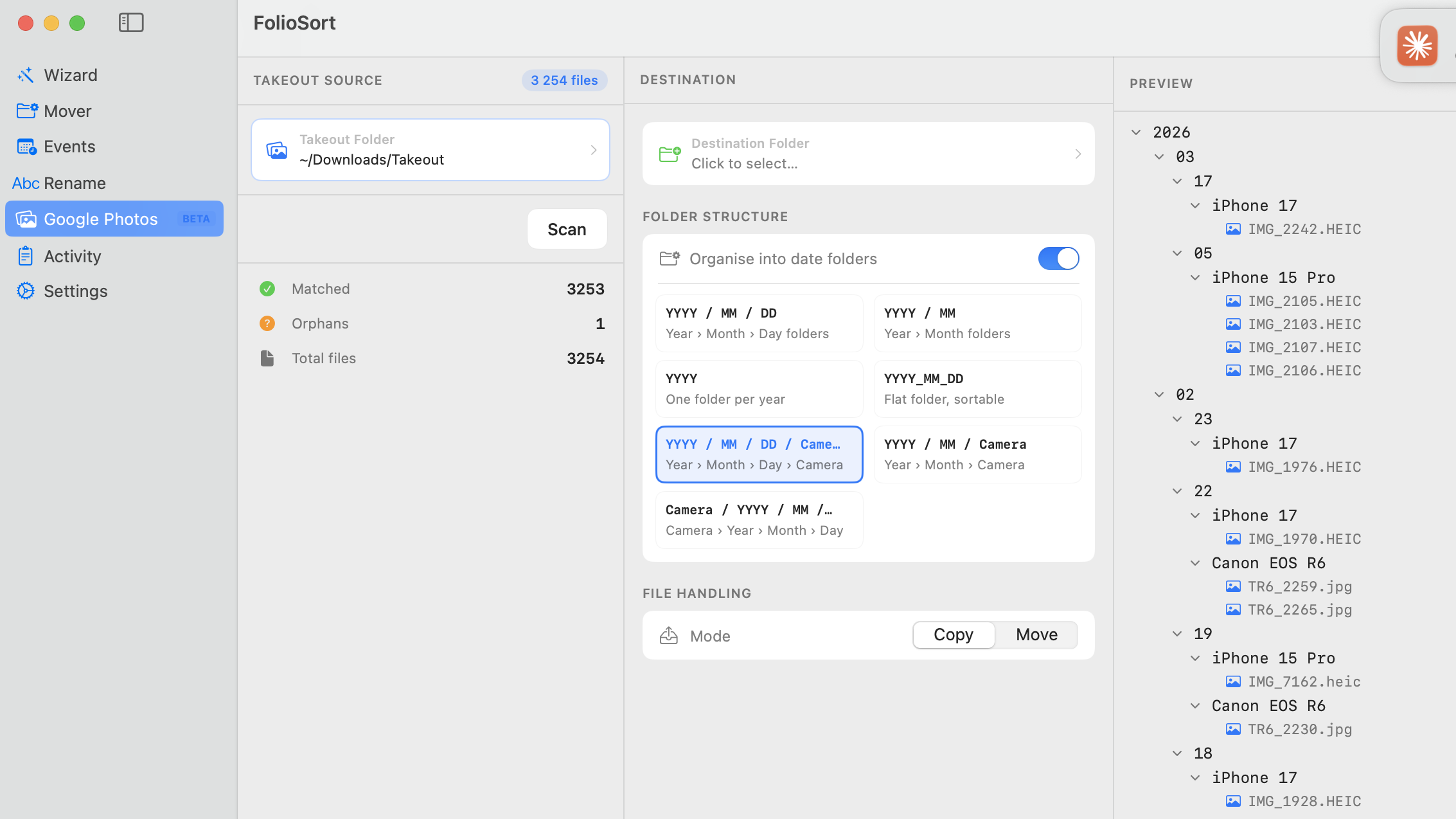
FolioSort matches every photo to its Takeout metadata and previews your clean local library before a single file moves.
Go to takeout.google.com. Deselect all services, then select only Google Photos. Choose .zip format, max 50 GB per file. Download the parts when Google notifies you (can take 1–3 days).
Create one folder on your chosen drive, e.g. D:\Google-Takeout-Raw\. In File Explorer, right-click each .zip and choose Extract All…, pointing every archive at that same folder.
Open FolioSort and select Google Photos (Beta) in the sidebar. Set the Takeout source to D:\Google-Takeout-Raw\ and click Scan. FolioSort reads every .json sidecar and writes the real date and GPS back into EXIF. Duplicates detected automatically.
Set your destination (e.g. C:\Users\You\Pictures\Library\ or a folder on an external drive), turn on Organise into date folders and pick a template — {YYYY}/{MM} {Month}/ is popular. The live preview shows the exact structure before anything moves.
Choose Copy or Move, then click Process. FolioSort writes every file into the right year/month folder and verifies each one with a checksum. A summary shows total files, errors (if any), and duplicates skipped.
Once you've confirmed the organized library looks right, you can delete the raw Takeout folder. The organized library is your master copy — ready to browse in File Explorer, Lightroom, or the Windows Photos app.
The right drive choice depends on your library size and how you'll access it.
A File Explorer-browsable, EXIF-sorted, GPS-tagged photo library that no app or service controls.
2024\01 January\, 2024\02 February\ — every photo in the right month. Browsable in File Explorer on any PC without any app, viewable on any OS, importable into any photo manager.
EXIF DateTimeOriginal is set correctly in every file. Open your library in Lightroom or the Windows Photos app and the timeline is perfect — because the data lives in the file, not on Google's servers.
Every photo that had a location in Google Photos gets its GPS coordinates restored in EXIF. Works with Lightroom's Map view and any GPS-aware app on Windows.
Every file FolioSort creates in the destination is verified by checksum against the source. Any corruption is caught immediately — you never have to trust an unverified photo archive.
Your finished library: a File Explorer-browsable Year/Month tree — no app or account required to open it.
Downloading Google Photos to a Windows PC, answered.
Export your library with Google Takeout (takeout.google.com), right-click each .zip in File Explorer and choose Extract All… into one folder, then run FolioSort to restore the real dates and GPS from the JSON sidecars and organize everything into clean Year/Month folders on your PC or an external drive.
Takeout keeps the real capture date in separate .json sidecar files instead of the photo's EXIF. When Windows extracts the zip, it stamps every file with today's date — so File Explorer sorts your whole archive as if it was shot this morning. FolioSort reads those sidecars and writes the correct DateTimeOriginal back into each file permanently.
Yes. FolioSort is free to download on Windows and the free tier processes up to 100 files per operation, so you can test the full workflow. Pro (€14.99, one-time — no subscription) removes the limit, and one license covers both Mac and Windows.
No. FolioSort runs 100% locally on your PC. Your photos and metadata never leave your computer — nothing is uploaded to any server or cloud.
Yes. Set the destination to any drive Windows can see — an external SSD, USB HDD, a mapped network drive, or an SMB NAS share. FolioSort writes directly to your chosen drive, so a large library never has to touch your C: drive.
FolioSort runs on Windows 10 (version 1809 or later) and Windows 11. It is also available for macOS 14+, and one Pro license covers both platforms.
The same workflow runs on macOS — and one FolioSort Pro license covers both your PC and your Mac. Here's the Mac version of this guide.
Use FolioSort's direct SMB transfer to put your organized library on a NAS — network accessible from every PC, phone and TV at home.
Run Immich on a home server and point it at your FolioSort-organized folder. Get a Google Photos-like UI over your perfectly organized local library.
Download FolioSort free and run the first 100 files in minutes. Fix Takeout's broken dates and GPS, then organize your whole library into a clean, permanent local archive you actually own.