File Type Filter
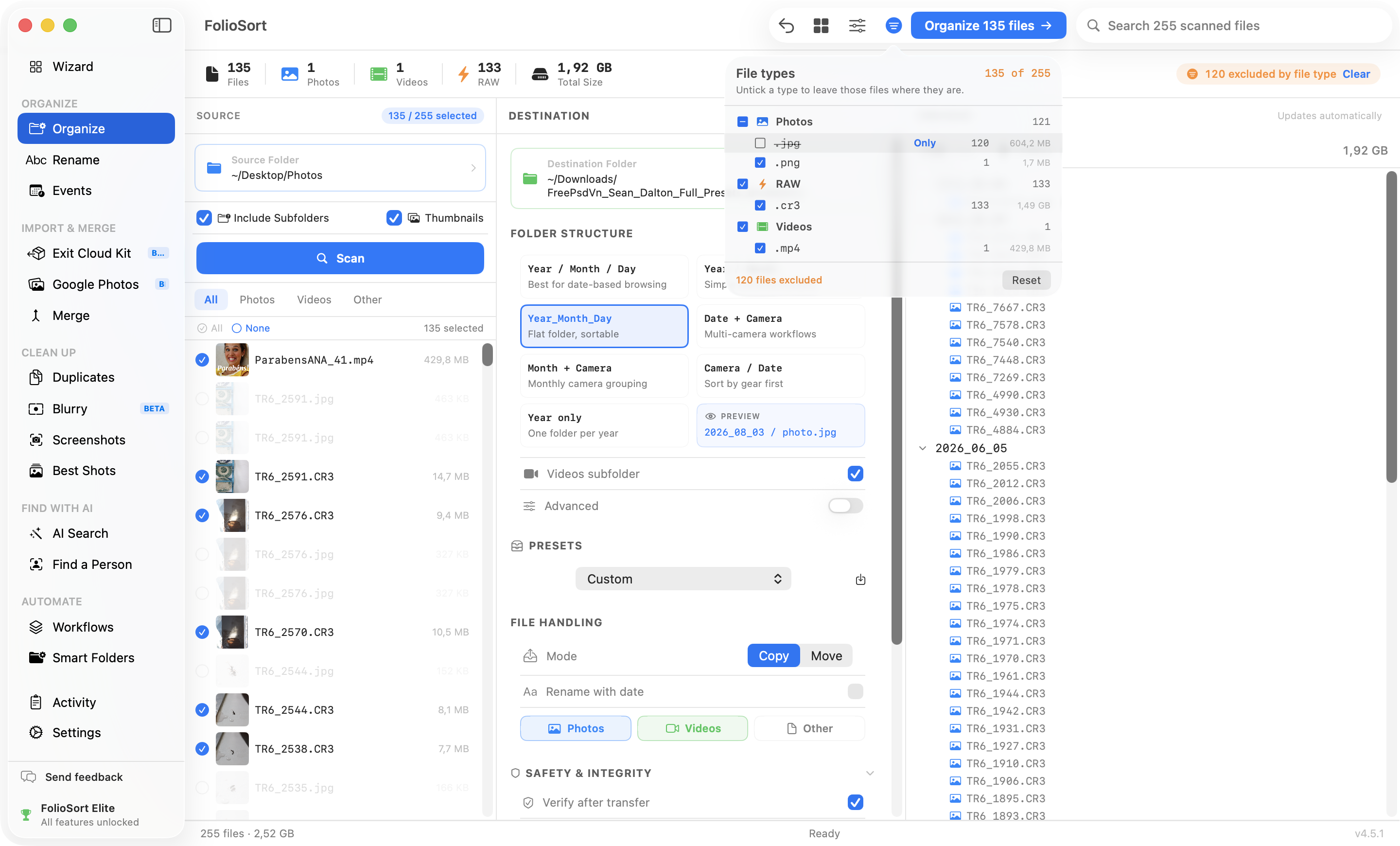
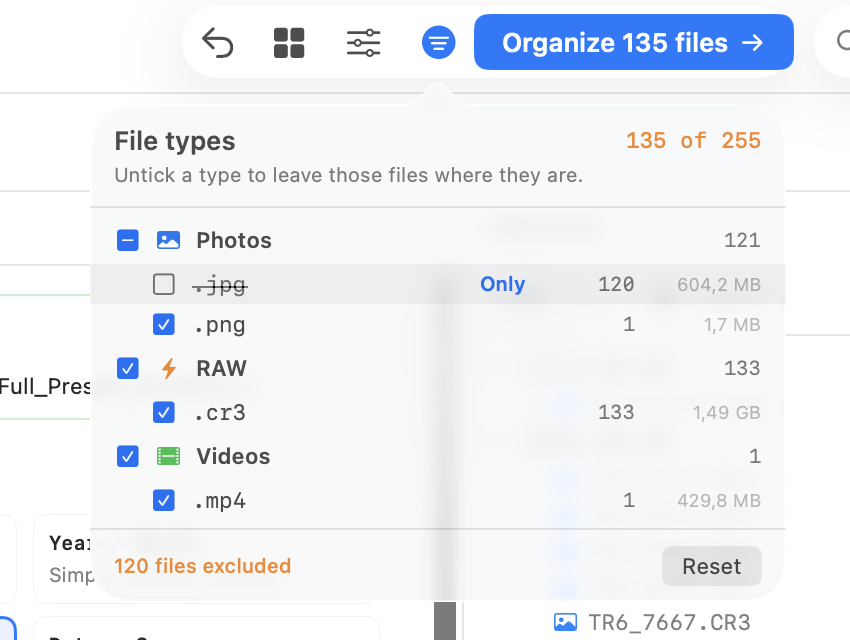
After a scan, FolioSort shows you the file types it actually found — each one with how many files it holds and how much space they take. Untick what you want left behind. One click on Only keeps a single type and drops the rest.
That was a real question from a FolioSort user, and the honest answer at the time was: you couldn't. You could include photos, videos or other files as broad groups — but not this extension and not that one.
The usual fix is a box where you type *.jpg. It sounds flexible and it quietly misleads: almost
everyone who types *.raw means all my RAW files, but literally that pattern matches only
the Leica .raw extension — not CR3, not NEF, not ARW. You'd get a run that copies nothing and no
hint as to why.
Every row in the picker is a real group of real files, with its own count and total size — .jpg
120 files, 604 MB · .cr3 133 files, 1.49 GB. There is nothing to guess and nothing to spell.
Types are grouped into Photos, RAW, Videos and Other files, so "keep the negatives, leave the JPEGs" is one click on a group header. The count on the run button updates as you tick, so you always know how many files the next run will touch — before it touches them.
How it works
Point FolioSort at your folders and press Scan. It reads the real EXIF of everything it finds, as always.
The funnel button sits right next to the run button — because it answers the question that button's count raises.
Drop a single extension, a whole group, or keep just one type with Only. Excluded files stay listed but dimmed, so nothing vanishes on you.
Copy or move, checksum-verified, one-click undo. The files you left out stay exactly where they were.
The picker
No surprises
.xmp and .aae always travel with the photo they describe. Your edits never get orphaned.The picker is in the Organizer, Rename, Events, Merge Sources and the Google Takeout import — on both macOS and Windows.
It is deliberately not in the features that run unattended: Workflows, Watch Folders and Takeout Auto-Sync have no review step, so there is no list of found types to pick from. Better to say so than to show you an empty box.
RAW+JPEG shooters: archive the negatives to the NAS and keep the JPEGs on the laptop — two runs, same scan, no manual selecting.
Phone dumps: a folder off an iPhone or Android backup is photos, videos, screenshots and
stray .txt files. Take the photos now and the 40 GB of video later.
Old drives: that Backup_2014 folder has JPEGs worth keeping and installer
leftovers that are not. The counts tell you which is which before you decide.
On the free tier the picker still opens and still shows every type your scan found, with counts and sizes — it's a genuinely useful inventory of what is in your folders. Ticking types to change a run is a Pro feature.
Pro is €29.99 once, with a 14-day money-back guarantee and no account. RAW support lives in the same tier, which is the point: if you're filtering CR3s from JPEGs, you're already there.
The file type filter sits on top of the Organizer's normal run — same templates, same verified copy, same undo. It just narrows what goes in.
Batch-sort tens of thousands of photos and videos by EXIF date, camera and folder templates.
Explore the Organizer → Pairs withSort CR3, NEF, ARW, RAF, DNG and cinema RAW by real EXIF — originals untouched.
Explore RAW →Pick which of the types your scan found should travel — counts and sizes included.
This pageFAQ
Yes. Scan the folder, open File types next to the run button, and hover the .jpg row — clicking Only keeps JPEGs and unticks every other type the scan found. The count on the run button updates immediately, so you see exactly how many files will be touched before anything moves.
Yes, and it's one click: the picker groups your types into Photos, RAW, Videos and Other files, so unticking Photos leaves every RAW selected. If you shoot RAW+JPEG, it's the fastest way to archive the negatives on their own.
Because a typed pattern lies to you. Most people write *.raw meaning "all my RAW files", but taken literally that matches only the Leica .raw extension — not CR3, NEF or ARW. FolioSort lists what your scan really found, so every row is a real group of real files with a real count next to it.
They always travel with the photo they describe, and the picker says so instead of offering a checkbox you'd regret. Your Lightroom or Capture One edits are never separated from their negative — even if you filter down to a single file type.
Choosing which types to include is a Pro feature. The free tier still sees the whole list — every extension found, with its file count and total size — so you can see what's in your folders before deciding. Pro is a one-time €29.99, no subscription, 14-day money-back guarantee.
Every part that scans your files and shows you the result first: the Organizer, Rename, Events, Merge Sources and the Google Takeout import. Unattended features that run without a review step — Workflows, Watch Folders and Takeout Auto-Sync — have no scan to pick from, so they don't offer it.
The list of types, with counts and sizes, is free to look at. Then take only what you came for — checksum-verified, fully undoable, and never uploaded anywhere.