How do I move my Google Photos library into iCloud?
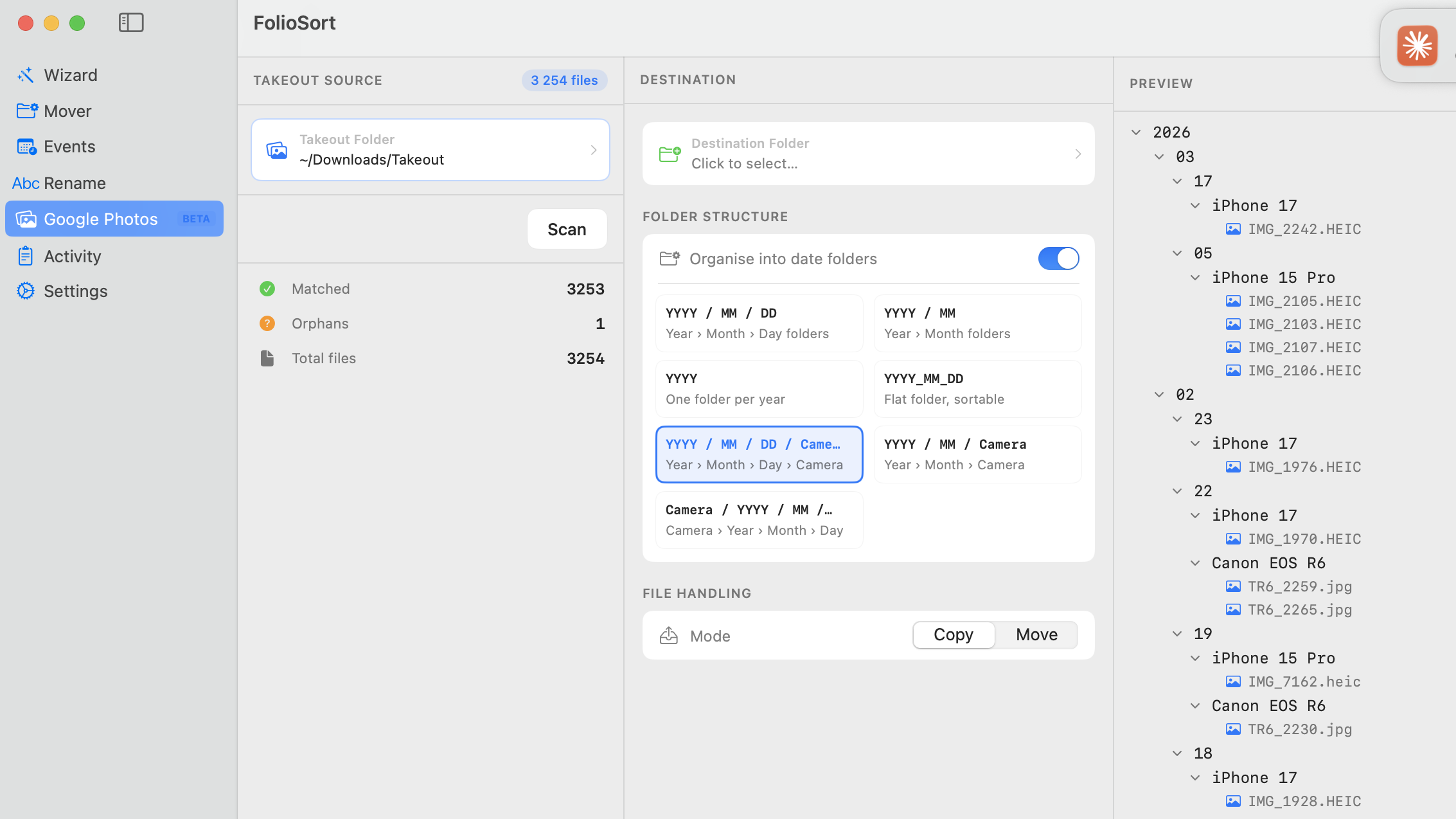
Export your photos with Google Takeout and extract the zip parts into one folder. Open FolioSort, select Google Photos (Beta) in the sidebar, point it at that folder and click Scan to restore the real dates and GPS from the JSON sidecars. Organise into clean Year/Month folders, then import that folder into Apple Photos (File → Import) and turn on iCloud Photos so it syncs to all your Apple devices.
Why do my Google Photos all show today's date after importing?
Takeout stores the real capture date in separate .json sidecar files, not in the photo's EXIF, so Apple Photos files everything under today. FolioSort reads those sidecars and writes the correct DateTimeOriginal back into each file before you import — so your Apple Photos and iCloud timeline is accurate.
Is FolioSort free?
Yes. FolioSort is free to download and the free tier processes up to 100 files per operation, so you can test the full workflow end to end. Pro (€19.99, one-time — no subscription) removes the limit for large libraries and adds duplicate detection.
Does FolioSort upload my photos anywhere?
No. FolioSort runs 100% locally on your Mac and never uploads your photos or metadata to any server. Your photos only reach iCloud when Apple Photos syncs them via your own iCloud account, after you import the organized library.
Can I organize straight into iCloud Drive instead of Apple Photos?
Yes. With FolioSort Pro you can set the destination to your iCloud Drive folder and organize directly into Finder-accessible Year/Month folders that sync across all your devices — an alternative to importing into the Apple Photos library.
Will FolioSort modify my original Takeout files?
No. FolioSort only removes a source file if you explicitly choose Move; with Copy your raw Takeout files stay untouched. You can review the live preview tree before clicking Process, so nothing changes until you confirm.
Does this work on Windows too?
FolioSort runs on both macOS 14+ and Windows 10+, and the same Google Photos (Beta) metadata fix and folder organization work on either. Importing into Apple Photos and iCloud Photos is a Mac step, but the FolioSort half of the workflow is identical on a Windows PC.