Tidy Up · FolioSort for Mac and Windows

How to tidy up your photo library. See it sorted before anything changes

Pick a folder. FolioSort shows the year and month folders your photos will go into, with the count in each, before a single file moves. Organize a checked copy, then clear the duplicates, move the screenshots out of the way and decide on the blurry shots, one step at a time. On your Mac or PC, offline.

macOS 14+ & Windows 10+ Your original folder stays as it is One click puts it all back

The short answer

To tidy up a photo library, sort the photos into folders by the date they were taken, then deal with what's left over: duplicates, screenshots and blurry shots. In FolioSort that is one guided flow called Tidy Up:

  1. Pick a folder — Pictures, Downloads, a drive, anything.
  2. See the preview — the year and month folders, before anything changes.
  3. Organize — copies checked byte for byte; your original folder stays as it is.
  4. Clean up — remove duplicates, move screenshots out, review blurry shots.
  5. Done — and every step can be undone.

Step by step

What you see, screen by screen

STEP 01

Open FolioSort. Tidy Up is the first card.

The Wizard asks what you'd like to do, and most people start here: put a folder of photos in order by date. You see it before anything changes.

Every other tool — rename, events, merge, the full Organize screen — is still one click away under Expert mode.

FolioSort on a Mac, Wizard step 1 'What would you like to do?': a highlighted 'Tidy Up — Recommended' card reading 'Put a folder of photos in order by date. You see it before anything changes.', with Organize Files, Rename Files and Events below under 'Expert mode — every option'.
The Wizard on a Mac, FolioSort 5.
STEP 02

Pick the folder your photos are in.

Drag it in, or start from Pictures, Downloads (where e-mail and WhatsApp photos land) or the Desktop. An external drive or a NAS share works the same way.

Photos still inside the Photos app, or in Google Photos, iCloud, OneDrive or Amazon Photos? Tidy Up shows you how to get them into a folder first — with their dates and albums.
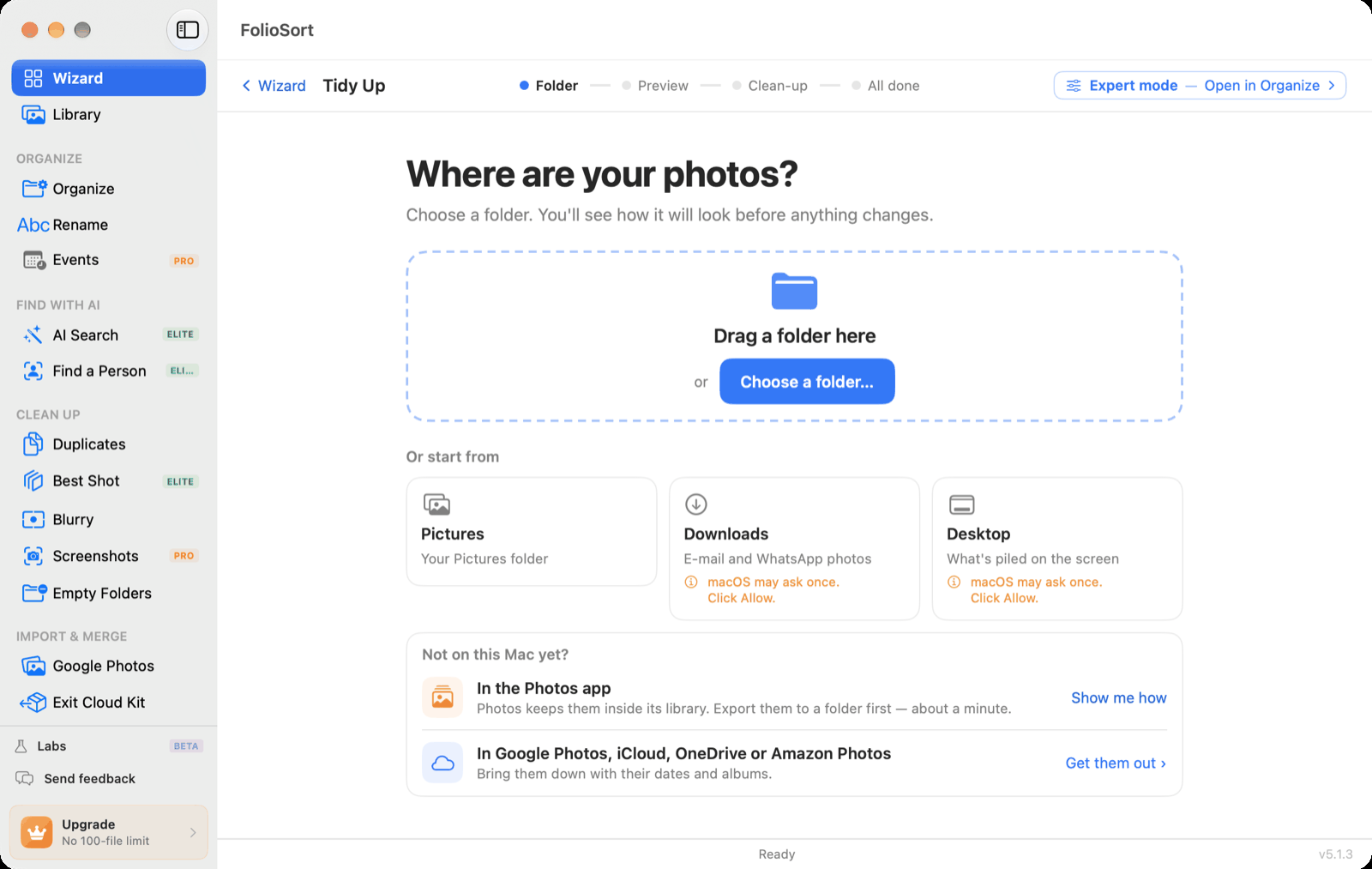
Tidy Up's Folder step: 'Where are your photos? Choose a folder. You'll see how it will look before anything changes.' A drop zone with 'Choose a folder…', shortcuts for Pictures, Downloads and Desktop, and a 'Not on this Mac yet?' box for the Photos app and for Google Photos, iCloud, OneDrive or Amazon Photos.
Folder step: drag a folder in, or start from Pictures, Downloads or Desktop.
STEP 03

See exactly how it will look. Nothing has changed yet.

FolioSort reads each photo's capture date and draws the folders it will make — 2026, 2025, 2024, and the months inside each, with thumbnails and the number of photos per month.

The whole plan is one sentence you can change in place:

  • copy them (originals stay put) or move them
  • into Organized inside the folder, or anywhere you choose
  • by year, then month — or year, month, then day
  • videos with the photos, or in a folder of their own

While you decide, FolioSort checks the rest of the folder and counts the duplicates, screenshots and blurry shots — and how much space they take.
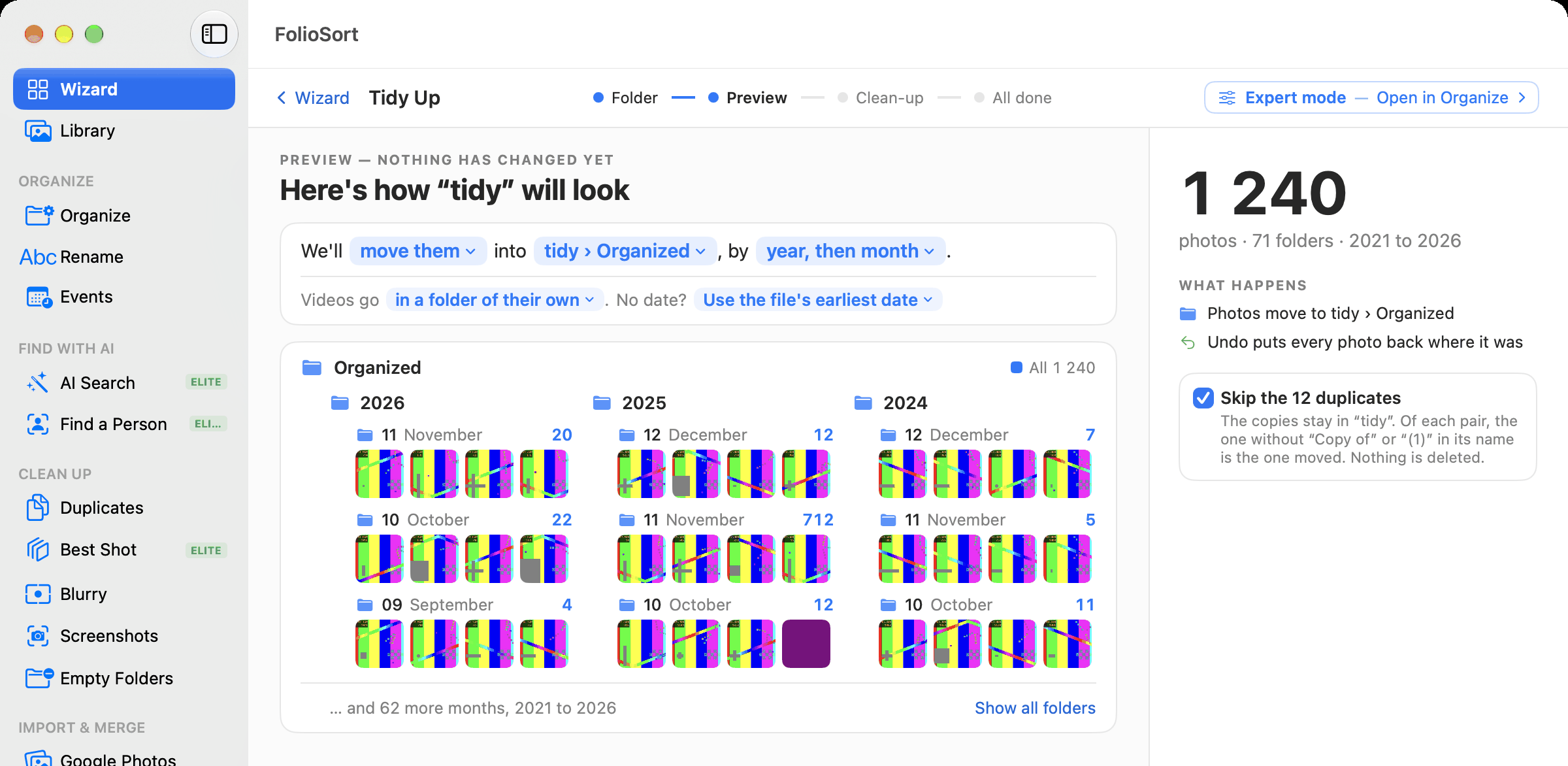
Tidy Up's Preview, headed 'Preview — nothing has changed yet. Here's how “tidy” will look'. The sentence reads 'We'll move them into tidy › Organized, by year, then month. Videos go in a folder of their own.' Below, an Organized tree with 2026, 2025 and 2024 and their months, each month with a photo count and thumbnails. On the right: 1 240 photos, 71 folders, 2021 to 2026, 'Undo puts every photo back where it was', and 'Skip the 12 duplicates'.
Preview of a test folder of 1 240 images (the thumbnails are test patterns). This one is set to Move; Copy is the default.
STEP 04

Organize. Checked byte for byte.

With Copy, every copy is checked against its original before FolioSort calls it done — and your original folder hasn't changed. With Move on the same disk, each file is just renamed into its new folder: its bytes are never rewritten.

The free version organizes the 100 newest photos right away, so you can see the result in your own folders before you decide anything. Pro or Elite sort the whole folder in one go.
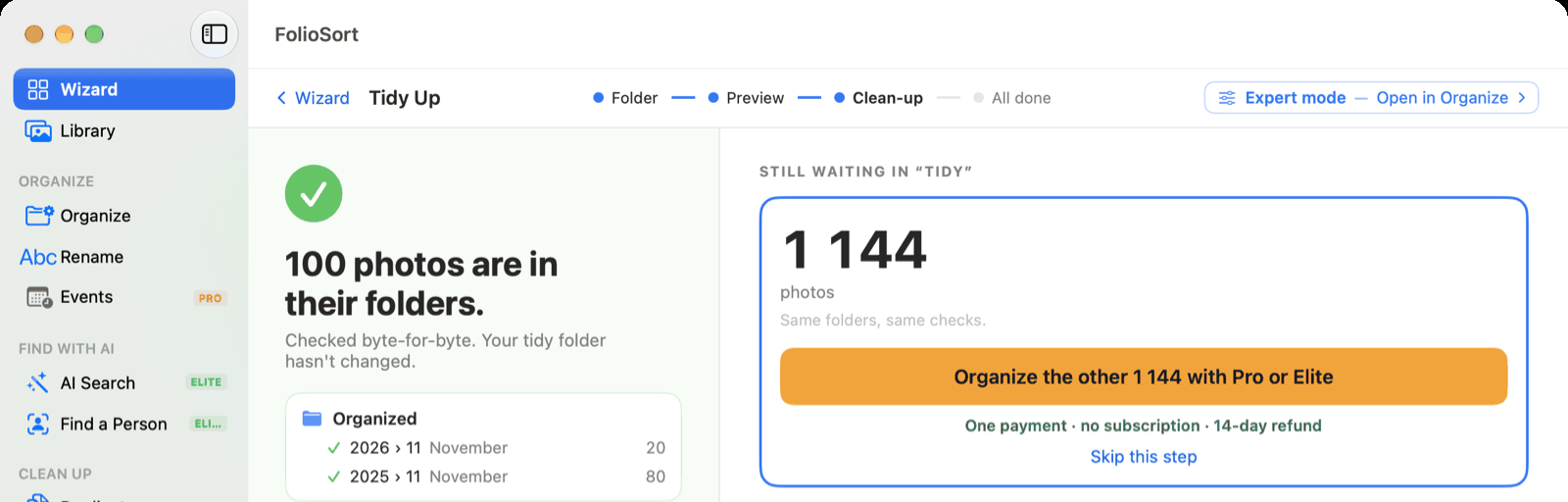
After a free run: a green tick and '100 photos are in their folders. Checked byte-for-byte. Your tidy folder hasn't changed.', with the folders 2026 › 11 November (20) and 2025 › 11 November (80). On the right, 'Still waiting in “tidy”: 1 144 photos' and 'Organize the other 1 144 with Pro or Elite — one payment, no subscription, 14-day refund'.
After a free run on the same test folder.
STEP 05

Clean up — one step at a time, or all at once.

Once the photos are sorted, Clean-up lists what else was in the folder, in order, with one button to go to the next:

  • Remove the duplicates — the best copy stays; the others go to the Trash.
  • Move the screenshots to their own folder — out of the way, not deleted.
  • Look at the blurry shots — nothing goes without your OK.
  • Keep the best shot of each burst — with Elite; you pick before anything goes.

Every row has Look at them first, Skip this step if you'd rather not, and Undo the last step afterwards. Leave halfway and Tidy Up picks up where you were.
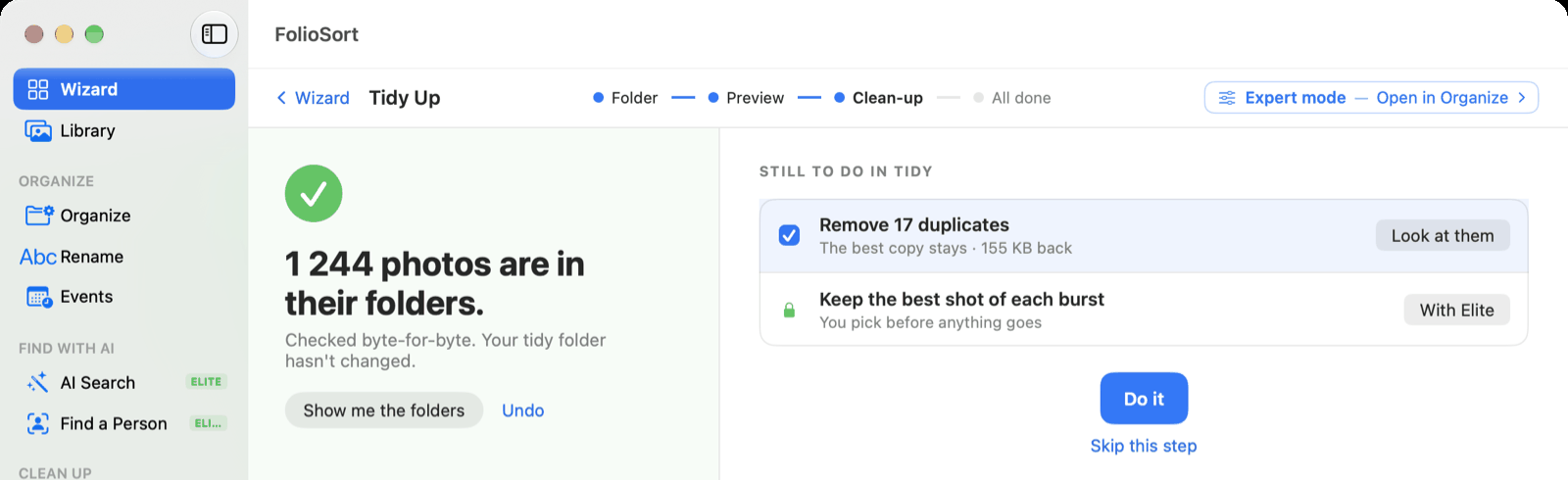
Clean-up after organizing with Pro: '1 244 photos are in their folders. Checked byte-for-byte.' On the right, 'Still to do in tidy': a ticked row 'Remove 17 duplicates — the best copy stays · 155 KB back' with a 'Look at them' button, a locked row 'Keep the best shot of each burst — with Elite', and a 'Do it' button with 'Skip this step' below.
Clean-up with a Pro licence.

Why it's safe to try on the folder that matters.

Tidy Up only reads until you press the button. The preview is built from your real photos and their real dates, so what you see is what you'll get.

Copy is the default: your original folder is left exactly as it was, and each copy is checked byte for byte. Nothing is ever deleted outright — duplicates go to the Trash, screenshots to a folder of their own.

Every step comes undone.

Undo on the result puts every photo back where it was. Each clean-up step has its own Undo the last step. And it all runs on your computer: no upload, no account, no cloud.

More on how FolioSort checks every file: Safety →

Elle m'a permis d'organiser 80000 photos de manière très efficace. J'ai pu supprimer des doublons, des captures d'écran inutiles, compresser des photos, et classer les photos par année.Translated from French: “It let me organize 80,000 photos very efficiently. I was able to delete duplicates and useless screenshots, compress photos, and sort the photos by year.”
PIERRE-ALEXIS B. · WINDOWS · FULL VERSION

Each step, in depth

The tools Tidy Up walks you through

Organize by dateYear/month folders from each photo's real capture date, with every option. Organize by date →
DuplicatesExact copies found byte for byte; review the groups, keep the best copy. Duplicates →
ScreenshotsFind the screenshots mixed in with your photos and move them out. Find Screenshots →
Blurry shotsScore every photo for sharpness and decide on the soft ones. Blurry →
The WizardTidy Up is its first card; every other guided flow is there too. The Wizard →
Photos still in the cloudBring Google Photos, iCloud, OneDrive or Amazon Photos down to a folder first. The Exit Kit →

FAQ

Tidy Up, answered

Does Tidy Up delete my photos?

No. By default Tidy Up copies your photos into the new folders and leaves the original folder exactly as it was; each copy is checked byte for byte against its original. If you choose Move instead, the files are moved, not rewritten, and Undo puts every photo back where it was. In the clean-up steps, duplicates go to the Trash, screenshots move to a folder of their own, and blurry shots are only removed after you look at them.

Does it work offline?

Yes. FolioSort runs on your computer. Your photos are not uploaded anywhere and no account is needed.

Does it work on Mac and Windows?

Yes. Tidy Up is in FolioSort for macOS 14 (Sonoma) or later and Windows 10 or later.

What does the free version do?

The free version previews the whole folder, counts its duplicates, screenshots and blurry shots, and organizes 100 photos per run, newest first. Pro or Elite organize the whole folder in one go and lift the clean-up limits (the free version removes up to 20 duplicates, 20 screenshots and 20 blurry shots in all). Pro and Elite are one payment, not a subscription — see pricing.

What if my photos are in Apple Photos, Google Photos or iCloud?

Tidy Up works on folders. Export the photos to a folder first: from the Photos app it takes about a minute, and FolioSort shows how. For Google Photos, iCloud, OneDrive or Amazon Photos, the Exit Cloud Kit brings the export down with its dates and albums.

How are the folders named?

By year, then month (for example 2025 › 11 · November), or by year, month, then day. FolioSort uses each photo's own capture date; for a file with no date you can use the file's earliest date. Videos can go with the photos or in a folder of their own. For camera, place or your own folder names, Expert mode opens the full Organize screen on the same folder.

Pick a folder. See it sorted. Then decide.

Download FolioSort free, open Tidy Up and point it at the folder you've been putting off. The preview costs nothing and changes nothing.

Free to start · no account Nothing changes until you press Organize macOS 14+ & Windows 10+
Download Free